
How to Copy an Instagram Caption on iPhone
The Instagram app doesn't let you select or copy someone else's caption. On iPhone you can screenshot the post and copy the words with Live Text in Photos, or use Copiya: double-tap the back of your iPhone, tap the first word of the caption, tap the last word, and it's copied.
You found the perfect recipe, quote or list of tips in an Instagram caption, you press and hold on it, and nothing happens. Instagram doesn't offer a copy option for captions on other people's posts. The text is right there on your screen, but the app won't hand it over.
Here are the two ways that actually work on iPhone, what each one is good at, and a few tips for long captions.
The built-in way: screenshot and Live Text
iOS can read text inside images with a feature called Live Text. It's free and built into every recent iPhone, so it's worth knowing:
- Open the post and tap more so the whole caption is showing.
- Take a screenshot (press the side button and volume up at the same time).
- Open the screenshot in the Photos app.
- Press and hold on a word in the caption until it highlights, then drag the blue handles to cover the part you want.
- Tap Copy, then paste it wherever you need it.
This works, but it has a few catches. You end up with a screenshot in your camera roll that you'll probably want to delete. Dragging the small handles across a long caption is fiddly, and it's easy to grab the username, the like count or the first comment by accident. If the caption is longer than one screen, you need several screenshots and several rounds of copying.
There's also a second built-in option: tap the share button on the post, choose Copy link, and open that link in Safari. On the web you can usually select the caption like normal text, though Instagram may ask you to log in first.
The Copiya way: two taps, no screenshot to clean up
Copiya was made for exactly this. Once it's set up (a one-time step inside the app that turns on Back Tap), copying a caption looks like this:
- With the caption on your screen, double-tap the back of your iPhone.
- Copiya shows the text from your screen. Tap the first word of the caption.
- Tap the last word. Everything in between is selected.
- Tap Copy and go back to Instagram.
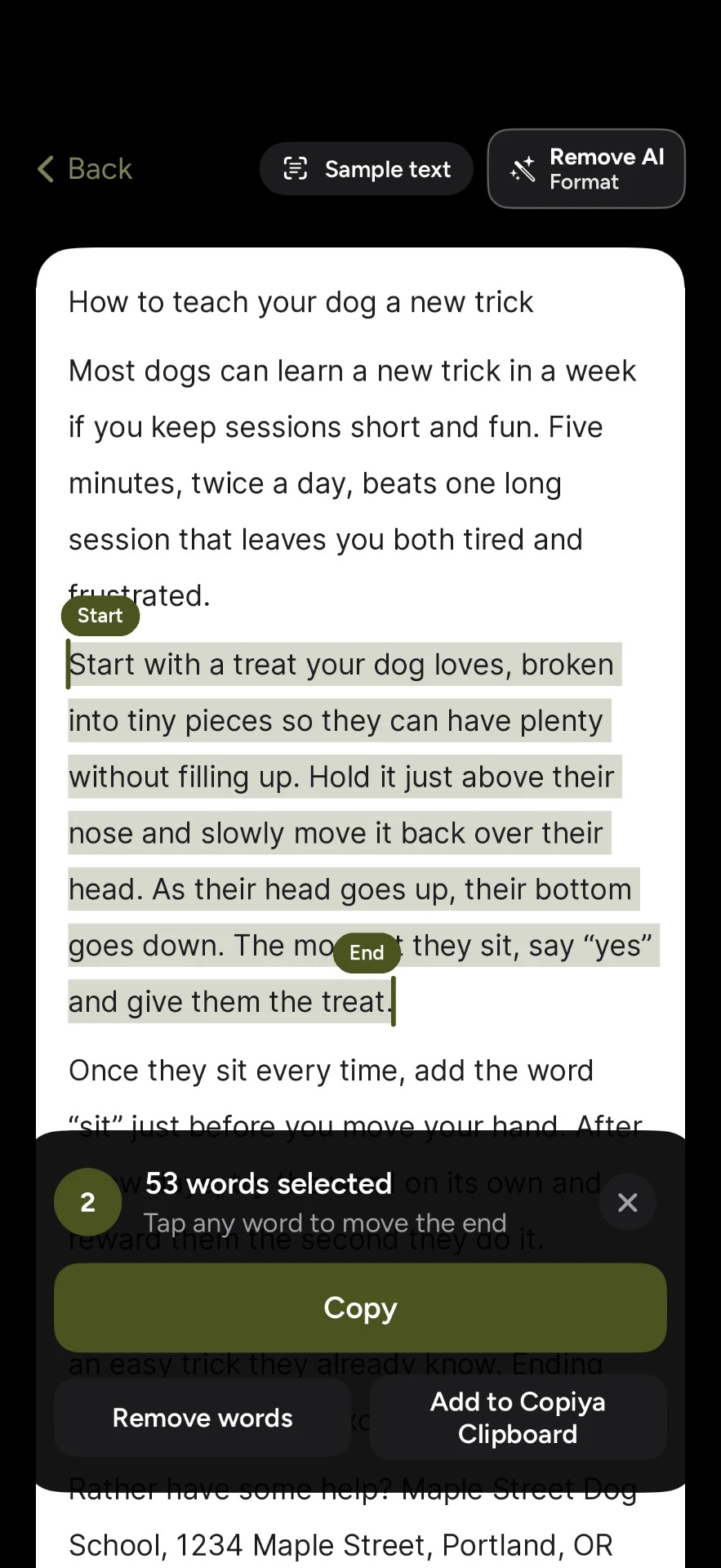
Because you choose a start and an end, it's just as easy to copy a single line, only the hashtags, or one ingredient list from the middle of a long caption. Phone numbers, emails and addresses in the caption show up in green, and tapping one copies it on its own.
The double-tap copy is free and unlimited. Copiya reads the text on your iPhone itself, and there's no account to create.
Tips for long captions and hashtags
- Expand the caption first. Tap "more" before you capture, or the end of the caption won't be on screen.
- Captions longer than one screen: scroll so the part you want is visible and copy it in pieces. If you copy a lot of long posts, Copiya Premium includes OverFlow, which captures content that doesn't fit on one screen.
- Just the hashtags: tap the first hashtag, then the last one.
- Skip a line in the middle: use Copiya's "Leave words out" option to drop the part you don't want before you copy.
- Copying comments instead? See how to copy Instagram comments on iPhone.
Which method should you use?
- Once in a while: screenshot and Live Text. It's free, already on your iPhone, and works well for short captions.
- On a computer, or already in Safari: open the post's link on the web and select the caption there.
- Often, or when you only want part of a caption: Copiya. You stay in Instagram, there's no screenshot to delete, and you pick the exact start and end with two taps.
Saving several captions to paste later? Copiya Clipboard keeps the things you copy in one place, so you can collect a few captions and paste them into Notes all at once.
Is it okay to copy someone's caption?
Copying a caption for your own use, like saving a recipe or a quote you want to remember, is what most people are doing. If you plan to repost someone's words publicly, credit the creator or ask first. Captions are the creator's own writing.
Questions people ask
Why can't I copy an Instagram caption?
The Instagram app doesn't include a copy option for captions on other people's posts, so pressing and holding on the text does nothing. You can work around it with a screenshot and Live Text, by opening the post's link in Safari, or with an app like Copiya that reads the text on your screen.
Can I copy just part of a caption?
Yes. With Live Text, drag the handles to cover only the part you want. With Copiya, tap the first word and the last word of the part you want, and only that section is copied.
Does this work for Instagram Reels captions too?
Yes. Pause the reel, tap the caption so the full text shows, then use either method. Copiya can also read text that's shown on screen in the video frame itself.
Does Copiya work on iPad?
Yes. iPad doesn't have Back Tap, so Copiya uses an AssistiveTouch shortcut on iPad instead. The tap-first-word, tap-last-word selection works the same way.