
How to Copy Instagram Comments on iPhone
The Instagram app has no option to copy a comment: pressing and holding a comment shows reply, report and other actions, but not Copy. On iPhone you can screenshot the comments and copy the text with Live Text in Photos, or use Copiya: double-tap the back of your iPhone, tap the first word of the comment, tap the last word, and it's copied.
Someone left the answer you were looking for in the comments: a product name, a link written out as text, a recipe tweak, a great reply you want to save. You press and hold on it, and Instagram offers to let you reply, like or report it, but there's no Copy.
Here's how to get the text of any Instagram comment on iPhone, with the free built-in method and the faster way.
The built-in way: screenshot and Live Text
- Open the post and tap the comment icon to show the comments.
- Scroll until the comment you want is fully on screen. If it's cut off, tap more to expand it.
- Take a screenshot (side button and volume up together).
- Open the screenshot in Photos, press and hold on the first word of the comment, and drag the handles to the end of it.
- Tap Copy.
The catch with comments is that they're packed tightly together. Usernames, timestamps, "Reply" buttons and the next person's comment sit right next to the text you want, so the handles often grab extra words. You also leave a screenshot in your camera roll every time.
The Copiya way: copy a comment in two taps
After the one-time setup in the Copiya app (it turns on Back Tap for you), copying a comment works like this:
- With the comment on screen, double-tap the back of your iPhone.
- Tap the first word of the comment.
- Tap the last word.
- Tap Copy, then go back to Instagram.
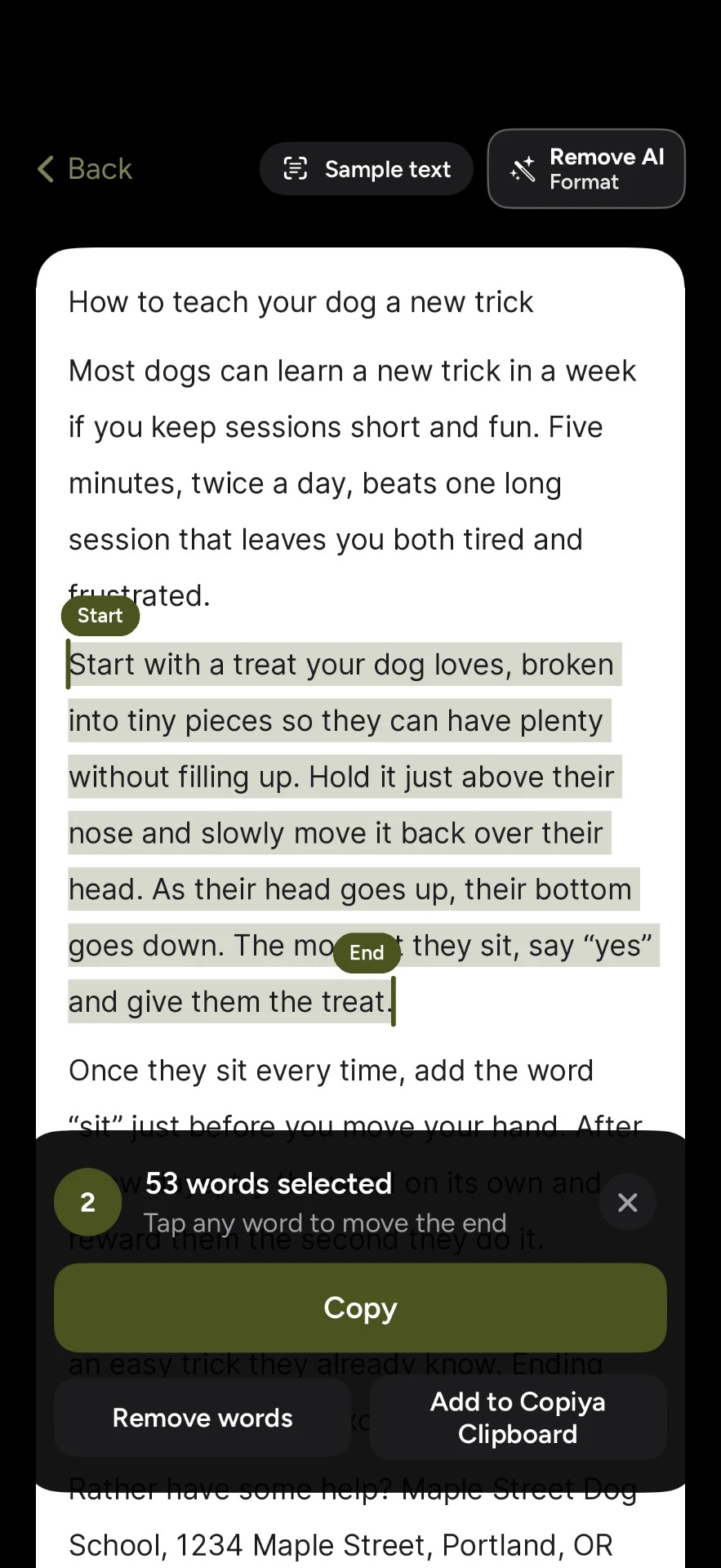
Since you choose the exact start and end, the username and the reply button stay out of it. If the comment contains a phone number, email or address, it shows up in green, and one tap copies just that. Copying with the double-tap is free and unlimited, and it works the same way in replies, bios and DMs you can see on screen.
Another free option: open the post in Safari
Instagram's website behaves more like a normal web page than the app does:
- On the post, tap the share button and choose Copy link.
- Paste the link into Safari and open it. Instagram may ask you to log in.
- Open the comments, then press and hold on a word to select it and drag the handles over the comment.
This avoids the screenshot, but it takes more steps, you have to be logged in on the web, and selecting text on a busy mobile page can still be fiddly. It's a good backup when you're already in Safari.
Which method should you use?
- Once in a while: screenshot and Live Text is free and already on your iPhone.
- Already in Safari: the web version is fine.
- Often, or for exact pieces of text: Copiya is the fastest because you never leave Instagram and you don't drag handles. Tap where the comment starts, tap where it ends, and it's copied.
Copying a long thread of comments
If you need a whole conversation from the comments, not just one comment, you have two options:
- Copy it in pieces. Copy what's on screen, paste it into Notes, scroll, and repeat.
- Use OverFlow (Copiya Premium). OverFlow is built for content that doesn't fit on one screen. It captures each screen as you scroll and can save the result as text, separate images, one stitched image or a grid.
Common problems
- The comment is cut off. Tap "more" under the comment before you capture it.
- Replies are hidden. Tap "View replies" to open the thread first.
- Emoji or stylized fonts look off. Text readers handle plain text best. Fancy Unicode "fonts" that some people use in comments may not come out exactly as they look.
- Need the caption instead? Read how to copy an Instagram caption on iPhone.
Questions people ask
Can you copy comments on Instagram?
Not from inside the Instagram app on iPhone. Pressing and holding a comment shows actions like reply and report, but no copy option. You can copy the text with a screenshot and Live Text, or with an app like Copiya that reads the text on your screen.
How do I copy only one comment without the username?
With Copiya, tap the first word of the comment and then the last word, and only the text in between is copied. With Live Text, start the selection after the username and drag carefully to the end of the comment.
Does this work for Instagram comments on iPad?
Yes. Live Text works on iPad, and Copiya works on iPad through an AssistiveTouch shortcut, since iPad doesn't have Back Tap.
Will the person know I copied their comment?
No. Both methods read what's already on your own screen. Instagram doesn't notify anyone when you take a screenshot of a regular post or its comments.