
How to Copy Text From an App on iPhone (Even Ones That Won't Let You)
When an app won't let you select text, take a screenshot and copy the words with Live Text, which is free and built into iOS. The faster way is Copiya: double-tap the back of your iPhone, tap the first word, tap the last word, and tap Copy. It works on any text you can see on screen, in any app.
You press and hold on a caption, a comment, a bio or a line in a chat, and nothing happens. No handles, no Copy button. Plenty of iPhone apps show text that you can read but can't select, usually because it's part of a post, a picture or a custom layout rather than a normal text field.
The good news: if the text is on your screen, you can almost always get it. Here's the free built-in way, the faster way, and what to do for websites, iPad and text that runs longer than one screen.
The built-in way: screenshot and Live Text
Live Text lets iOS read words inside any image, including screenshots. It's free and works on iPhone XS and later.
- Get the text you want fully on screen. Tap "more" or "See more" first if it's cut off.
- Take a screenshot: press the side button and volume up together.
- Tap the thumbnail in the corner, or open the screenshot later in Photos.
- Press and hold on the first word you want until it highlights, then drag the blue handles to the end.
- Tap Copy and paste it wherever you need it.
It works in every app because it doesn't care where the text came from. The downsides are small but they add up: every copy leaves a screenshot to delete, the handles are fiddly on tightly packed text like comments, and it's easy to grab a username, a timestamp or a button label by accident.
If you can't select anything in your screenshot, check that Live Text is on in Settings > General > Language & Region.
The Copiya way: copy from any app in two taps
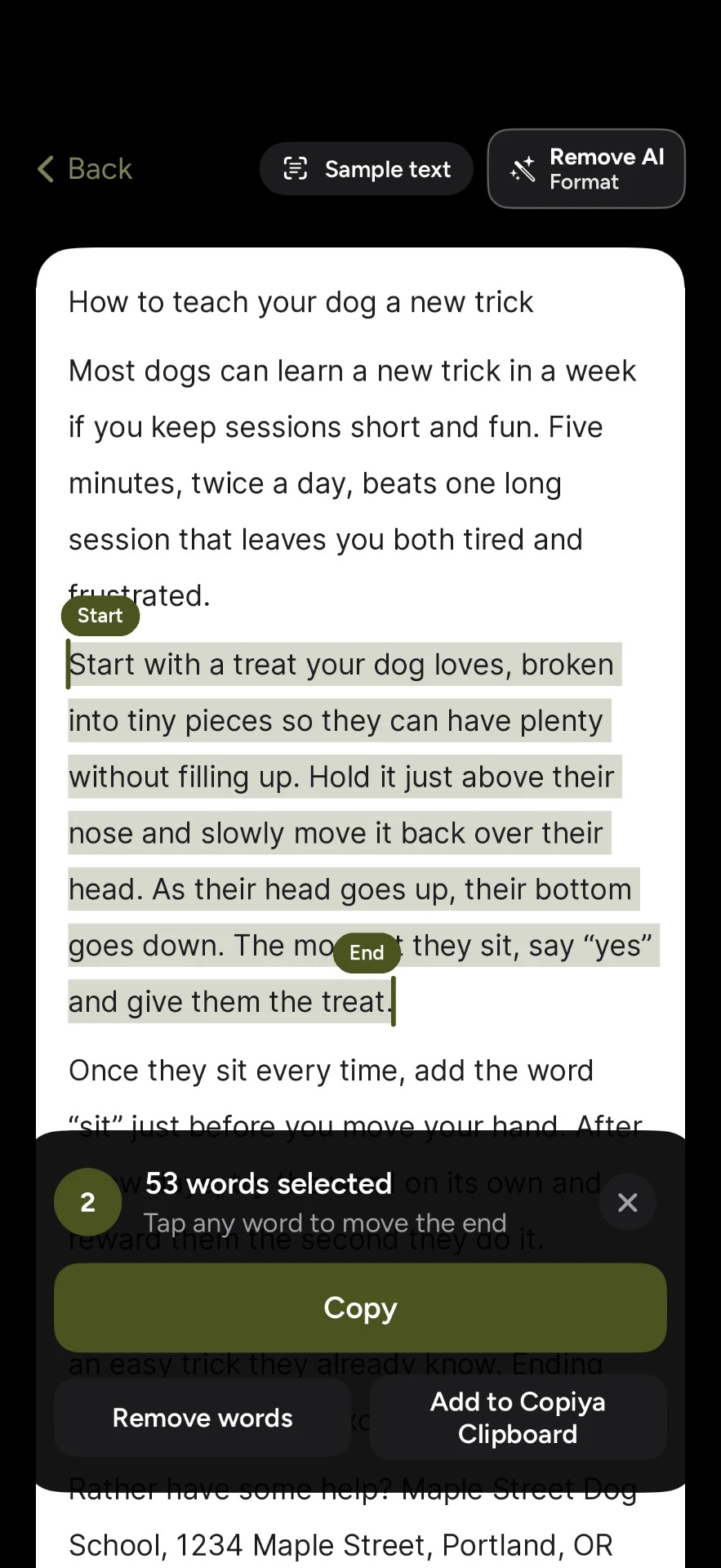
Copiya skips the screenshot. After a one-time setup in the app, which turns on Back Tap for you, it works like this:
- With the text on your screen, double-tap the back of your iPhone.
- Tap the first word you want.
- Tap the last word. Everything in between is selected.
- Tap Copy, then go back to your app and paste.
A few things make this faster than the built-in way:
- No screenshot left behind. Nothing is added to your photo library.
- Exact start and end. You don't drag handles, so it's easy to copy one sentence out of a long post.
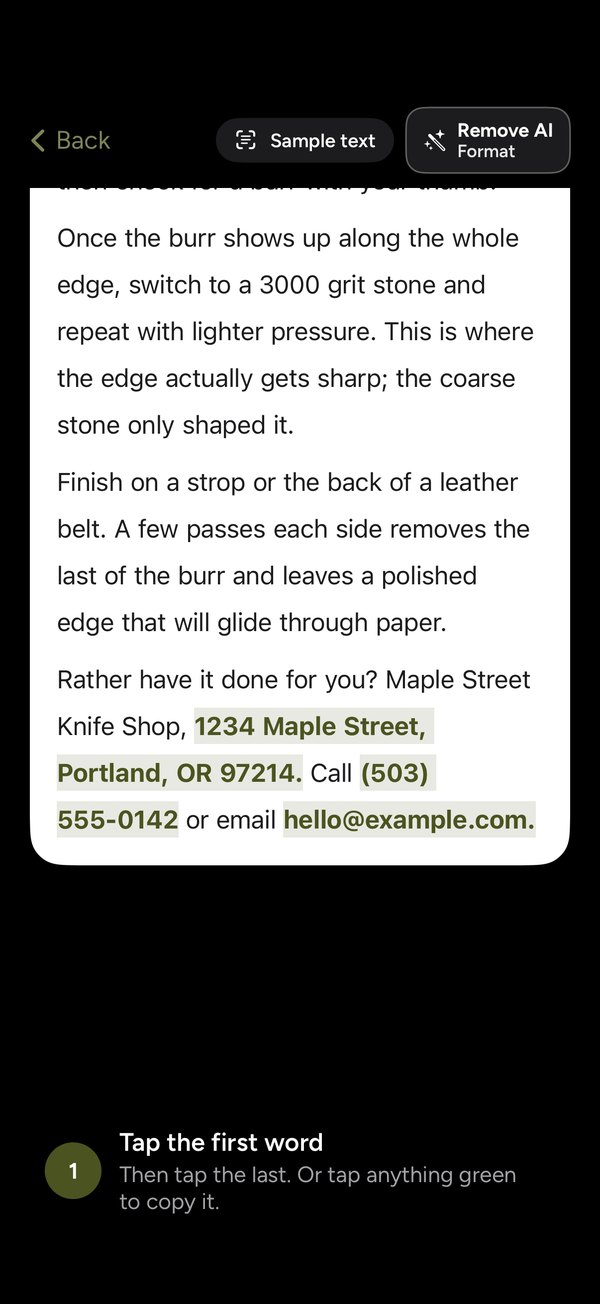
- Green tap-to-copy. Phone numbers, emails and addresses show up in green. Tap one to copy just that.
- Leave words out. Drop a line in the middle, like a username or a "Reply" label, before you copy.
The double-tap copy is free and unlimited, there's no account, and Copiya reads the text on your iPhone itself.
No Back Tap? Use Control Center
If your case is thick or you'd rather not use Back Tap, add Copiya Select to Control Center and start a copy from there. It's the same tap-first-word, tap-last-word selection.
On iPad, which doesn't have Back Tap, use Copiya Select in Control Center (iPadOS 18 or later) or an AssistiveTouch shortcut. Everything after that works the same as on iPhone.
Copying from websites that block selection
Some websites stop you from selecting text. For quoting or keeping something for your own reference, you have two easy options in Safari:
- Built in: try Safari's Reader view (tap the page menu in the address bar). Reader often shows the article as plain, selectable text.
- Copiya's Safari extension: select text right on the page, or capture the whole page as a picture, a PDF or clean text in one step.
When the text is longer than one screen
Long posts, chat threads, slides and photo dumps don't fit on one screen. You can copy them in pieces: copy what's visible, paste it into Notes, scroll, and repeat. Copiya Clipboard helps here, since it collects the pieces you copy so you can paste them all together. Pieces stay in Copiya Clipboard for 24 hours.
If you do this often, OverFlow in Copiya Premium captures content longer than one screen and saves it as text, cropped pictures, a grid or one tall picture. A triple-tap on the back saves a single screen. Premium is $2.99 a month, $19.99 a year or $29.99 once, with a 14-day free trial.
Already have the screenshots? Share them to Copiya from Photos. The share sheet reads text from screenshots, photos and PDFs, and can join up to 10 screenshots into one.
App-by-app guides
Some apps have their own quirks, like hidden replies or captions that cut off. These guides walk through them step by step:
More app guides are added regularly, and each one links back here.
Tips and troubleshooting
- Expand before you copy. Text hidden behind "more" isn't on screen, so neither method can see it.
- Fancy fonts may come out wrong. Stylized Unicode letters, text over busy video and messy handwriting are hard for any text reader. Plain text works best.
- Back Tap doesn't respond. Tap firmly on the back of the phone, try without a thick case, or start the copy from Control Center instead.
- Copiya reads what's on screen, not audio. It can copy captions shown in a video, but it doesn't transcribe speech.
- Leave security codes alone. For passwords and one-time codes, use iOS AutoFill and your password manager. Copiya isn't meant for those.
Questions people ask
How do I copy text that can't be copied on iPhone?
Take a screenshot, open it, then press and hold on the text to copy it with Live Text. Or use Copiya: double-tap the back of your iPhone, tap the first word, tap the last word, and tap Copy. Both work on any text that's visible on your screen.
Why can't I copy text from this app?
Many apps display posts, captions, comments and profiles as part of their own layout instead of as selectable text, so iOS has nothing to select. The text is still on your screen, which is why screen-reading methods like Live Text and Copiya work.
Is there an app to copy text from anywhere on the screen?
Yes. Copiya copies any text you can see on your iPhone or iPad screen, in any app. Start it with a double-tap on the back of your iPhone or from Control Center, then tap the first and last word. The double-tap copy is free and unlimited.
Can I copy text from a picture or a PDF on iPhone?
Yes. Live Text works on photos and screenshots in the Photos app. You can also share screenshots, photos or a PDF to Copiya from the share sheet to read the text from them.
Does Copiya upload my screen to read the text?
No. Copiya reads the text on your iPhone or iPad itself, and there's no account to sign up for.