
The Best Copy and Paste App for iPhone (Free and Honest Picks)
Yes, there are copy and paste apps for iPhone, but which one you need depends on the problem. If you want to copy text from apps that won't let you select it, Copiya copies any text on your screen in two taps and the double-tap copy is free. If you want a history of everything you copy, that's a clipboard manager, and for one-off copies iOS already has Live Text built in.
"Copy paste app" covers very different tools. Some save a history of what you copy, some read text from photos, and some copy text from apps that won't let you select it. Picking the wrong kind is why people install one and delete it a day later.
A note up front: Copiya is our app. We'll cover what iPhone does for free first, where other kinds of apps are the better choice, and then where Copiya fits.
The built-in way: what iPhone already does for free
Before you download anything, it's worth knowing what's already on your iPhone:
- Standard copy and paste. Press and hold on text, drag the handles, tap Copy. To paste, press and hold in a text field and tap Paste. You can also pinch in with three fingers to copy and spread three fingers to paste.
- Live Text. iOS can read words inside photos and screenshots on iPhone XS and later. Open the image in Photos, press and hold on a word, and copy it. It also works through the Camera, by pointing it at a sign or a page.
- Universal Clipboard. Copy on your iPhone and paste on your Mac or iPad, as long as both are signed in to the same Apple Account with Wi-Fi, Bluetooth and Handoff turned on.
What iPhone doesn't have is a clipboard history you can scroll through. It keeps only the most recent thing you copied, and each new copy replaces it. It also can't copy text that an app doesn't let you select, like many captions, comments, bios and chat bubbles, unless you take a screenshot first and use Live Text on it.
The four kinds of copy and paste apps
Almost every copy and paste app on the App Store falls into one of these groups:
| Type of app | What it's for | Good to know |
|---|---|---|
| Clipboard managers | Keeping a history of things you copied, and saving snippets you paste often | iOS doesn't let apps read your clipboard in the background, so you usually add items by opening the app, using its keyboard or sharing to it |
| Clipboard keyboards | Pasting saved snippets from a custom keyboard in any app | Often need Full Access, which lets the keyboard send what you type over the network. Read its privacy policy first |
| Text scanner (OCR) apps | Pulling text from paper, photos and PDFs with the camera | Live Text already covers much of this for free on newer iPhones |
| Screen-text apps like Copiya | Copying text you can see on screen in any app, including apps that won't let you select it | Reads what's visible, so it can't copy hidden links, images or audio |
The Copiya way: copy any text on screen in two taps
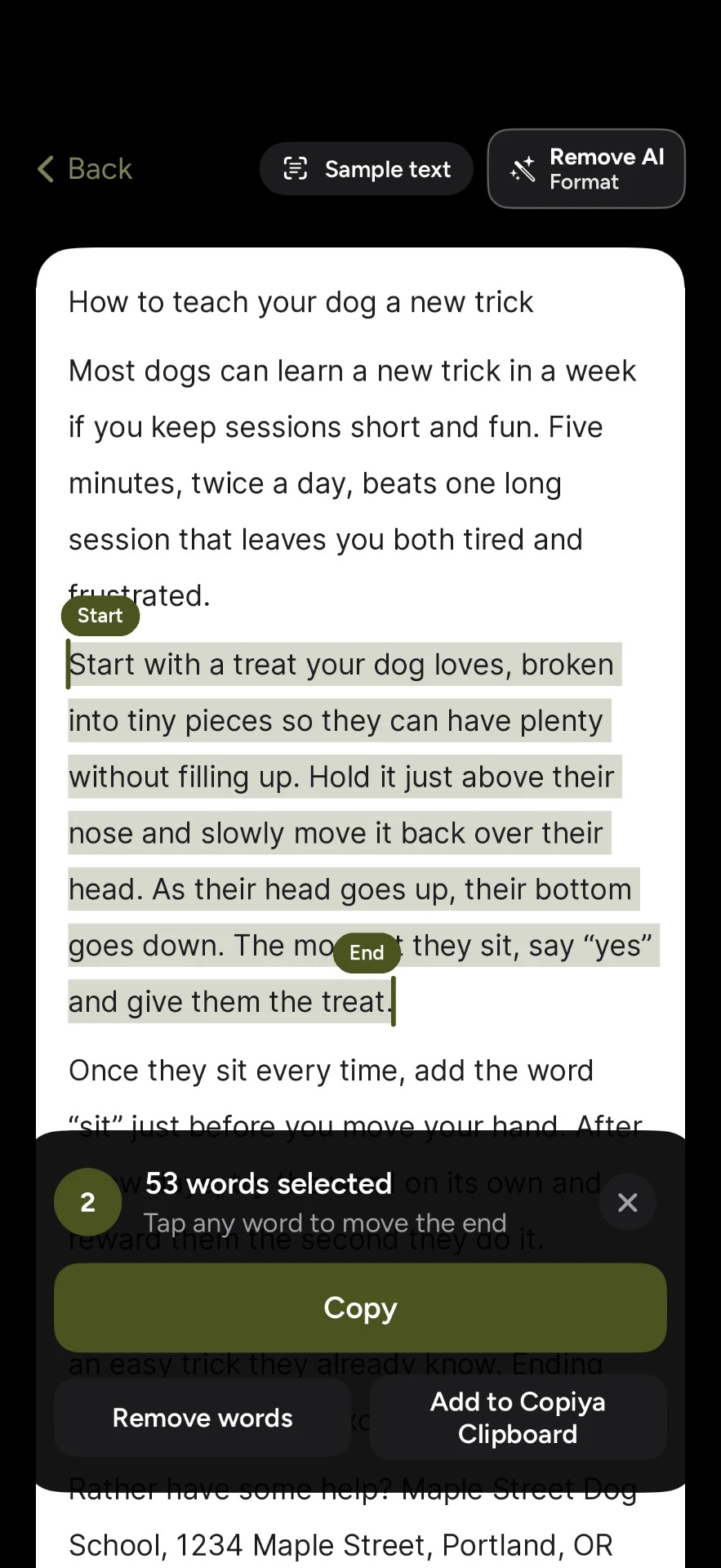
The Copiya app is the screen-text kind, built for text that's right in front of you but can't be selected. After a one-time setup in the app, which turns on Back Tap for you, copying works like this:
- With the text on your screen, double-tap the back of your iPhone.
- Tap the first word you want.
- Tap the last word. Everything in between is selected.
- Tap Copy, go back to your app and paste.
It's free and unlimited, there's no account, and Copiya reads the text on your iPhone itself. A few extras:
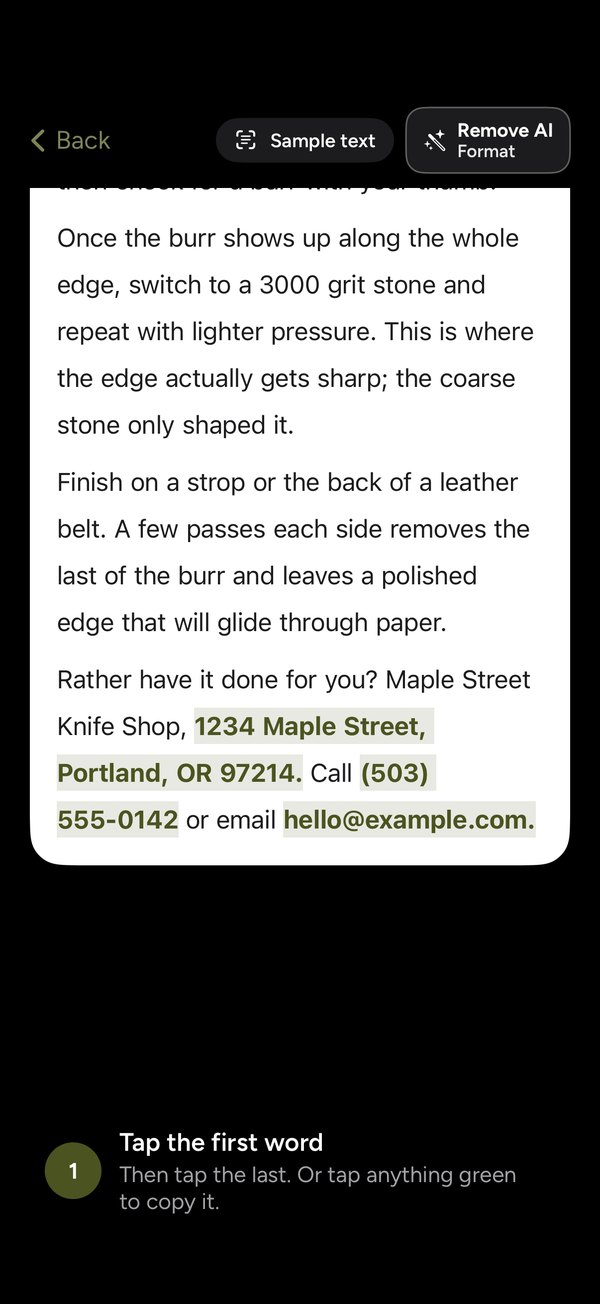
- Green tap-to-copy. Phone numbers, emails and addresses on screen show up in green. Tap one to copy just that.
- Leave words out. Drop a username, a timestamp or a line in the middle before you copy.
- Remove AI Format. Turns long dashes into commas and drops AI credit lines and "Would you like me to...?" endings. It uses no AI.
- Copiya Clipboard. Collect several pieces and paste them together. Pieces stay there for 24 hours. This is a scratchpad for what you copy with Copiya, not a history of everything you copy on your iPhone.
- Safari extension. Select text on a web page, or capture a whole page as a picture, a PDF or clean text.
- Share sheet. Share screenshots, photos or a PDF to Copiya to read the text, and join up to 10 screenshots into one.
For content longer than one screen, like a long post, a chat or a set of slides, OverFlow in Copiya Premium captures it as text, cropped pictures, a grid or one tall picture. A triple-tap on the back saves a single screen. Premium is $2.99 a month, $19.99 a year or $29.99 once, with a 14-day free trial. You don't need Premium for everyday copying.
Copy and paste app for iPad
iPad has the same built-in tools: Live Text, Universal Clipboard and the three-finger gestures. With a keyboard attached, Command-C and Command-V work too.
iPad doesn't have Back Tap, so Copiya starts a different way: add Copiya Select to Control Center (iPadOS 18 or later), or set up an AssistiveTouch shortcut. After that, it's the same tap-the-first-word, tap-the-last-word selection.
Which copy and paste app should you choose?
- You copy now and then from normal text: you don't need an app. Use the built-in copy and paste.
- You want words from a photo or a sign: try Live Text first. It's free.
- You paste the same addresses, replies or snippets all day: a clipboard manager or clipboard keyboard will save you the most time.
- An app won't let you select text, or you only want part of it: a screen-text app like Copiya. It's the fastest way to copy a caption, a comment, a bio or one line from a chat without a screenshot. Our guides on copying an Instagram caption and copying Instagram comments show it step by step.
Many people use two: a clipboard manager for snippets and a screen-text app for text they can't select.
Privacy: what to check before you install
A copy and paste app sees what you copy, so check a few things:
- Check where your text goes. Prefer apps that process text on your device, or clearly say what they upload.
- Be careful with Full Access keyboards. Only turn it on for a keyboard you trust.
- Keep passwords out of it. For passwords and one-time codes, use iOS AutoFill and your password manager, not a clipboard app.
Tips and troubleshooting
- "Allow Paste" keeps popping up. iOS asks when an app wants to read what you copied from another app. You can change this per app in Settings, under the app's name, with Paste from Other Apps.
- Back Tap doesn't respond. Tap firmly on the back of the phone, try without a thick case, or start Copiya from Control Center.
- The text runs off the screen. Copy it in pieces, or see how to copy text from an app on iPhone that won't let you for longer content.
Questions people ask
Is there a free copy paste app for iPhone?
Yes. Copy and paste, Live Text and Universal Clipboard are built into iOS at no cost. If you need to copy text from apps that won't let you select it, the Copiya app's double-tap copy is free and unlimited, with no account.
Does iPhone have clipboard history?
No. iPhone keeps only the last thing you copied, and each new copy replaces it. To keep a history, you need a clipboard manager app. Copiya Clipboard holds pieces you copy with Copiya for 24 hours, but it isn't a history of every copy on your phone.
What is the best app to copy text from the screen on iPhone?
For text in photos and screenshots, Live Text is free and built in. For text inside apps that won't let you select it, Copiya copies anything visible on screen: double-tap the back of your iPhone, tap the first word, tap the last word, and tap Copy.
Is there a copy paste app for iPad?
Yes. iPad has the same built-in copy, paste and Live Text as iPhone. Copiya also works on iPad, started from Copiya Select in Control Center on iPadOS 18 or later, or from an AssistiveTouch shortcut.
Can a copy and paste app see everything I copy?
Not on its own. iOS doesn't let apps read your clipboard in the background, and it asks before an app pastes from another app. Keyboards with Full Access can see what you type, so only enable it for apps you trust.