
Copy and Paste Shortcuts for Mac, iPhone and iPad: Every Key and Gesture
The copy and paste shortcut on a Mac or an iPad with a keyboard is Command-C to copy, Command-V to paste and Command-X to cut. On iPhone, the shortcut is a gesture: pinch closed with three fingers to copy and pinch open to paste. For text an iPhone app won't let you select, the Copiya app is a quicker route: double-tap the back of your iPhone, then tap the first and last word.
On Windows it's Ctrl-C, Ctrl-X and Ctrl-V; on Apple devices, Command takes the place of Ctrl. Below is every shortcut for each device, checked against Apple's support pages for macOS Tahoe 26 and later, iOS 27 and iPadOS 27, plus fixes for when one stops working.
Copy and paste shortcuts on Mac (MacBook Air, MacBook Pro, MacBook Neo, iMac)
Every Mac uses the same keys. Hold Command (⌘, next to the space bar) and tap the letter.
| Shortcut | What it does |
|---|---|
| Command-C | Copy the selected text, image or file |
| Command-X | Cut the selected text or image |
| Command-V | Paste |
| Option-Shift-Command-V | Paste and Match Style (paste without formatting) |
| Option-Command-C | Copy Style (copy only the formatting) |
| Option-Command-V | Paste Style (text apps); in Finder, moves copied files |
| Command-A | Select all |
| Command-Z / Shift-Command-Z | Undo / Redo |
With a mouse or trackpad: Control-click the selection (or right-click, or click with two fingers on a trackpad) and choose Copy, then Control-click where it goes and choose Paste. To copy a link, Control-click it and choose Copy Link. On a Magic Mouse, turn on secondary click first in System Settings > Mouse.
Paste without formatting on Mac
Text from a website or email often brings its font, size and color along. Option-Shift-Command-V pastes it to match the surrounding text instead. Apps choose whether to support it, so if the keys do nothing, look for Paste and Match Style in the app's Edit menu. To paste values only in a spreadsheet, look there for Paste Special or Paste Formula Results; the keys vary by app.
Copy and paste an image or screenshot on Mac
Control-click an image in Safari and choose Copy Image, or select a photo in Photos and press Command-C, then Command-V where it goes. For a screenshot, add Control to the usual keys: Control-Shift-Command-3 copies the whole screen and Control-Shift-Command-4 copies the area you drag, straight to the clipboard instead of the desktop. Already took a normal one? Control-click the thumbnail in the corner and choose Save to Clipboard.
Cut and paste files in Finder
Finder has no Cut for files. Select the file, press Command-C, open the new folder and press Option-Command-V: the file moves. Plain Command-V makes a copy instead.
Clipboard history on Mac
On macOS Tahoe 26 and later, the Mac keeps a history of things you copy. Press Command-Space bar to open Spotlight, then Command-4 to see it. The first time, you may be asked to allow search results from the Clipboard. Select an item and press Command-C to copy it again. To erase it, click the More button beside the search field and choose Clear History. On earlier macOS versions, the clipboard holds only your last copy.
Copy and paste shortcuts on iPhone
iPhone has no copy key, but Apple's iPhone User Guide lists gestures that do the same job once text is selected:
| Gesture | What it does |
|---|---|
| Double-tap / triple-tap | Select a word / a paragraph |
| Pinch closed with three fingers | Copy |
| Pinch closed with three fingers two times | Cut |
| Pinch open with three fingers | Paste |
| Swipe left with three fingers | Undo |
| Swipe right with three fingers | Redo |
| Touch and hold the Space bar | Turns the keyboard into a trackpad to move the cursor |
iOS 27 adds a one-tap paste: when you open a text field after copying, the bar above the keyboard shows a paste option with a preview of what you copied (text, a link or a photo) in most apps. Tap it to paste. On iOS 26 and earlier, tap the cursor and choose Paste.
A shortcut for text you paste often: go to Settings > General > Keyboard > Text Replacement, tap the add button, and pair a phrase (your address, a sign-off) with a short code. Typing the code fills in the phrase. Every step in more detail: how to copy and paste on iPhone.
The Copiya way: a faster copy shortcut on iPhone
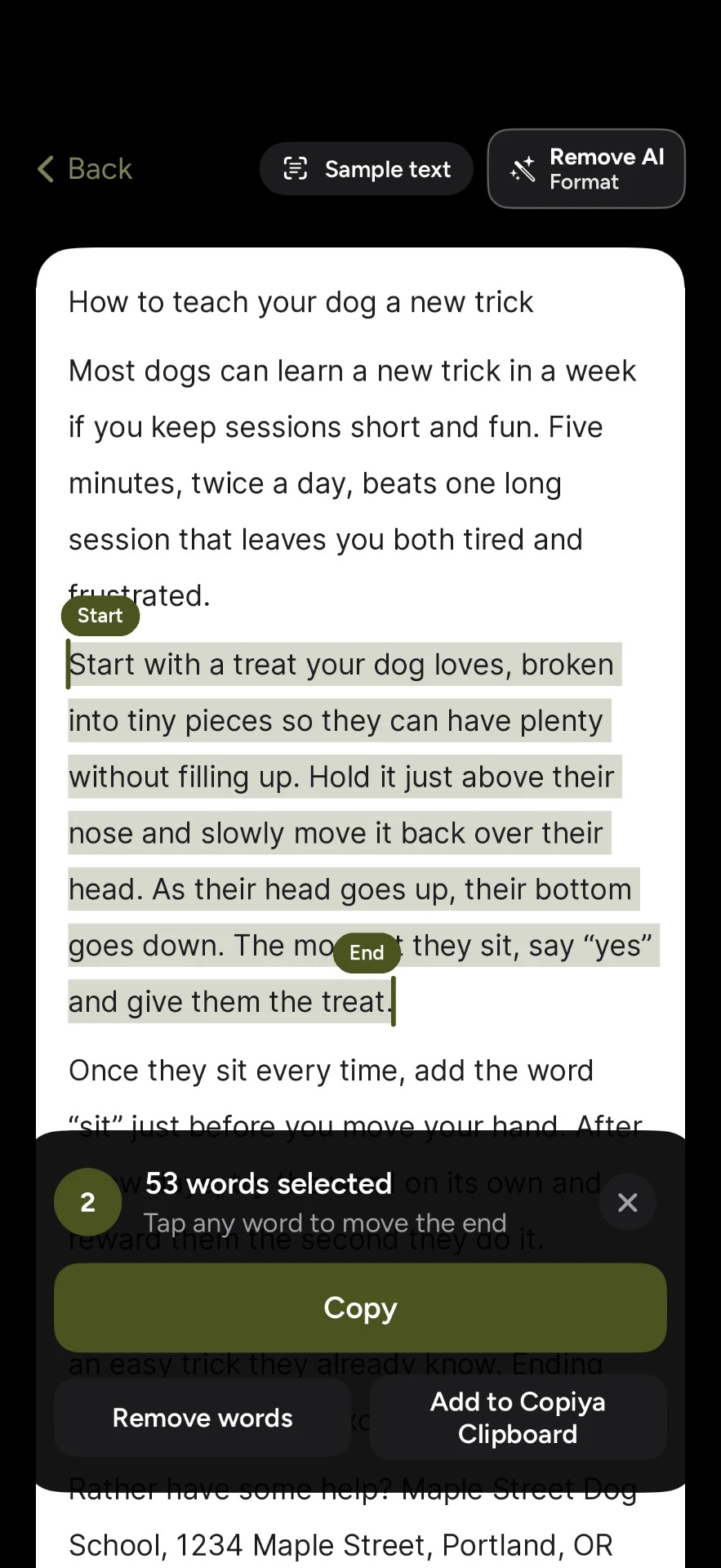
Every shortcut above needs selectable text, and captions, comments, bios and chat bubbles often aren't, depending on the app. The Copiya app reads the text on your screen instead, so in most cases selecting doesn't matter:
- With the text on screen, double-tap the back of your iPhone.
- Tap the first word you want.
- Tap the last word. Everything in between is selected.
- Tap Copy, then paste anywhere with a three-finger pinch open or the iOS 27 paste button.
Double-tap copy is free and unlimited, needs no account and reads the text on the device itself. Copiya Clipboard keeps the pieces you copy with it for 24 hours (each copy stays on the iPhone clipboard for 60 seconds, so paste soon), and OverFlow in Copiya Premium captures something longer than one screen as text.
Copy and paste shortcuts on iPad
With a Magic Keyboard, Smart Keyboard, keyboard case or any Bluetooth keyboard, iPad uses the Mac keys: Command-C copy, Command-X cut, Command-V paste, Command-A select all, Command-Z undo and Shift-Command-Z redo. With a trackpad or mouse, two-finger click or right-click the selection for Copy and Paste. Without a keyboard, the iPhone gestures above work the same way.
To see every shortcut an app supports, turn on Windowed Apps or Stage Manager, then tap the app's name next to the date (iPadOS 27) or swipe down from the middle of the top edge (iPadOS 26) to open the menu bar. On iPadOS 18 and earlier, press and hold Command. Copiya on iPad starts from Copiya Select in Control Center (iPadOS 18 or later) or an AssistiveTouch shortcut. More in how to copy and paste on iPad.
Copy on one device, paste on another
With Universal Clipboard, press Command-C on your Mac and paste on your iPhone or iPad, or the other way around. Apple requires the same Apple Account, Wi-Fi, Bluetooth and Handoff on, and the devices near each other. Paste soon; the item expires quickly.
Copy and paste shortcut not working? Fixes
- Nothing happens on Mac: open the app's Edit menu. If Copy is gray, nothing is selected or the content is protected. If it lists different keys, check System Settings > Keyboard > Keyboard Shortcuts > App Shortcuts and remove any entry that reuses Command-C or Command-V.
- Command acts like another key: in the same Keyboard Shortcuts window, open Modifier Keys and set Command back to Command for that keyboard. On iPad it's Settings > General > Keyboard > Hardware Keyboard > Modifier Keys.
- Three-finger pinch does nothing on iPhone: text has to be selected first, and some games and drawing apps use three fingers for something else.
- Copy and paste fails in every app: on a Mac, open Activity Monitor, search for pboard (the clipboard process), select it and click the Stop button; macOS restarts it in most cases. Otherwise, restart the Mac, iPhone or iPad. That clears a stuck clipboard in most cases. If it only fails in one app, quit and reopen that app.
Looking for more speed on iPhone? See how to quickly copy and paste on iPhone.
Questions people ask
Why doesn't Control-C work on my Mac?
On a Mac, Command does the job Control does on Windows, so use Command-C and Command-V. With a PC keyboard plugged into a Mac, the Windows key usually acts as Command; you can check or swap it in System Settings > Keyboard > Keyboard Shortcuts > Modifier Keys.
Can you change the copy and paste shortcuts on a Mac?
Yes, for any command that appears in an app's menus. In App Shortcuts, click the add button, pick the app (or All Applications), type the menu command exactly as it appears, including any "..." at the end, then press the new keys. A shortcut that clashes with another one won't work until you change it.
Is there a shortcut to copy and paste on iPhone?
Yes, the three-finger pinch. If it keeps triggering the wrong thing, keep your thumb and two fingers close together near the middle of the screen and pinch in one smooth motion.
Is there a keyboard shortcut for copy and paste history on iPhone or iPad?
No. iPhone and iPad have no built-in clipboard history, even in iOS 27 and iPadOS 27; they keep only your last copy. Only the Mac has one, from macOS Tahoe 26.