
How to Quickly Copy and Paste on iPhone (Without Dragging Handles)
The quickest built-in way is to double-tap a word (or triple-tap a paragraph), pinch closed with three fingers to copy, then spread three fingers in a text field to paste. If you'd rather not select text at all, or the app won't let you, the Copiya app copies it in two taps: double-tap the back of your iPhone, tap the first word, tap the last word, and tap Copy.
Copy and paste on iPhone works, but the default way is slow: press and hold, wait for the loupe, drag two tiny blue handles across the text, then hunt for the Copy button. Do that a dozen times a day and it adds up.
There are faster ways, and most of them are already on your phone. Here are the built-in shortcuts first, then the Copiya app, which is ours, for when you want to skip selecting altogether.
The built-in way: faster taps and gestures
These work in Notes, Mail, Safari, Messages and most apps where text can already be selected, on any recent iPhone, including iPhone 15, 16 and 17.
Select faster
- Double-tap a word to select just that word.
- Triple-tap to select the whole paragraph in one go.
- Double-tap and hold on the first word, then drag to the last word, to select a block without touching the handles.
- Select All: tap once in a text field you're editing, tap again to open the menu, and choose Select All when the app offers it.
Copy and paste without the menu
- Copy: with text selected, pinch closed with three fingers.
- Cut: pinch closed with three fingers twice.
- Paste: tap where you want the text, then spread three fingers apart.
- Undo a paste: swipe left with three fingers, or double-tap with three fingers.
- Shortcut bar: tap once with three fingers to bring up a small bar with undo, cut, copy and paste buttons at the top of the screen.
A small "Copy" or "Paste" badge appears at the top of the screen so you know the gesture worked. It takes a few tries to get the pinch right, but once it clicks it's much quicker than the pop-up menu.
Paste without holding down
You don't need to press and hold to paste. Tap once in the text field to place the cursor, then tap the cursor again and choose Paste. Or skip the menu entirely with the three-finger spread.
Move the cursor precisely
If you keep landing the cursor in the wrong spot, touch and hold the space bar. The keyboard turns into a trackpad, and you can slide your finger to move the cursor exactly where you want it before you paste.
Stop copying the same thing over and over
If you paste the same email address, address or reply every day, set up a Text Replacement in Settings > General > Keyboard > Text Replacement. Type a short code like "@@" and iOS expands it into the full text. It's quicker than copying and pasting every time.
All of this is fast when an app lets you select text. It doesn't help when the text can't be selected at all, like many captions, comments, bios and chat bubbles, or when you only want one sentence out of a long message.
The Copiya way: copy without selecting
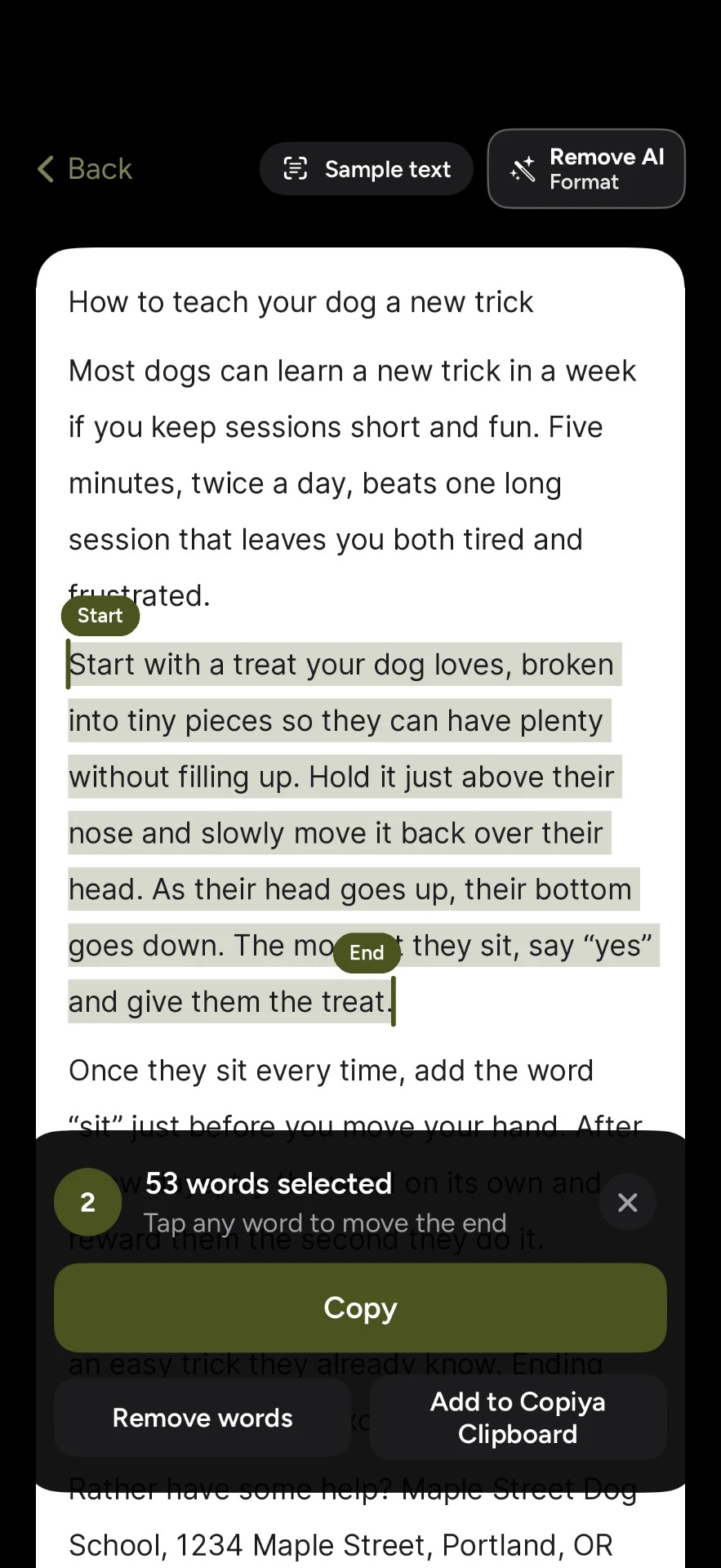
The Copiya app reads whatever is on your screen, so you skip the press-and-hold and the handles. After a one-time setup in the app, which turns on Back Tap for you, it works like this:
- With the text on your screen, double-tap the back of your iPhone.
- Tap the first word you want.
- Tap the last word. Everything in between is selected.
- Tap Copy, go back to your app and paste.
It works in any app, including ones that don't offer a Copy option. Double-tap copy is free and unlimited, there's no account, and Copiya reads the text on your iPhone itself. A few things that make it quicker still:
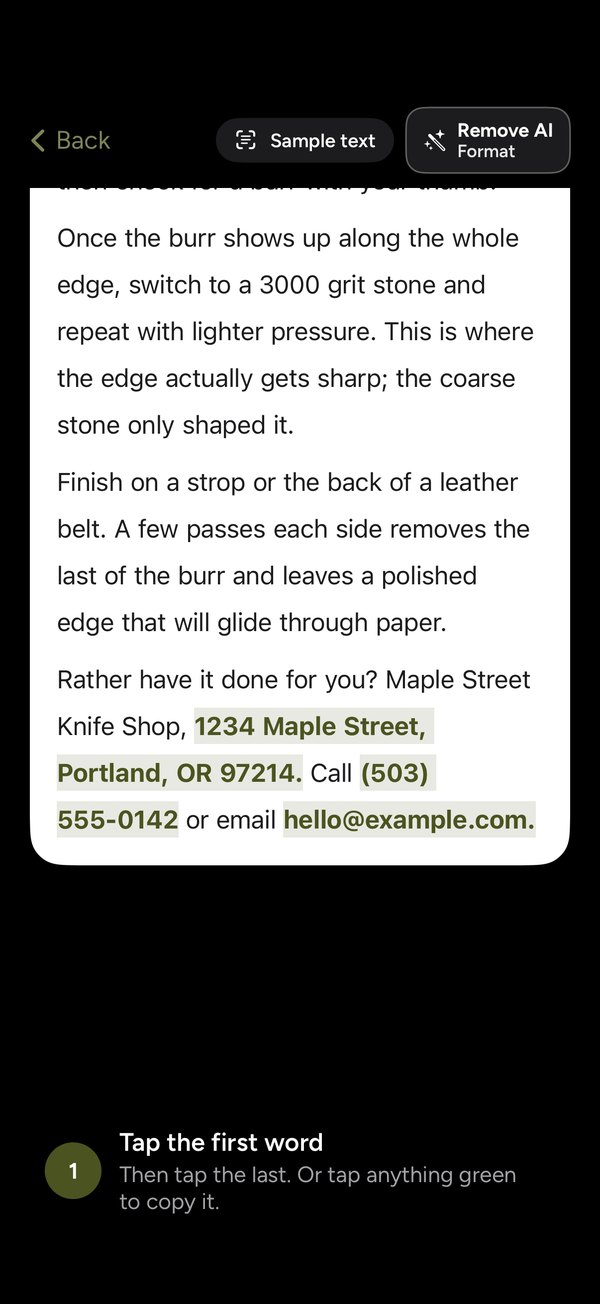
- Green tap-to-copy. Phone numbers, emails and addresses on screen show up in green. One tap copies just that, with no selecting at all.
- Leave words out. Drop a username, a timestamp or a line in the middle before you copy, instead of fixing it after you paste.
- Copiya Clipboard. Collect several pieces, then copy them all at once. Pieces stay for 24 hours, and what you copy with Copiya stays on the iPhone clipboard for 60 seconds, ready to paste.
- Remove AI Format. Turns long dashes into commas and drops AI credit lines and "Would you like me to...?" endings, so text from a chatbot pastes clean. It uses no AI itself.
For something longer than one screen, like a long post or a chat, OverFlow in Copiya Premium captures it as text. Premium is $2.99 a month, $19.99 a year or $29.99 once, with a 14-day free trial. Quick everyday copying doesn't need it.
How to quickly copy and paste on iPad
iPad has the same double-tap, triple-tap and three-finger gestures. With a keyboard attached, Command-C copies, Command-V pastes and Command-A selects all.
iPad doesn't have Back Tap, so Copiya starts from Copiya Select in Control Center (iPadOS 18 or later) or from an AssistiveTouch shortcut. After that, it's the same tap the first word, tap the last word selection.
Tips and troubleshooting
- Three-finger pinch does nothing? Make sure text is actually selected first, and keep all three fingers on the screen as you pinch. Some games and drawing apps use these gestures for something else.
- "Allow Paste" keeps popping up. iOS asks when an app wants to paste something you copied in another app. You can change it per app in Settings, under the app's name, with Paste from Other Apps.
- Back Tap not responding? Tap firmly on the back of the phone, try without a thick case, or start Copiya from Control Center instead.
- The app won't let you select anything. See how to copy text from an app on iPhone that won't let you for every option, including the free Live Text way.
- Leave passwords and codes to AutoFill. For passwords and one-time codes, iOS AutoFill and your password manager are faster and safer than copying.
Want to compare tools? Our honest guide to copy and paste apps for iPhone covers clipboard managers and text scanners, and the best app to copy text from your screen goes deeper on screen-text tools.
Questions people ask
How do I copy and paste on iPhone without selecting?
iPhone itself always needs some kind of selection, but you can make it faster: double-tap a word or triple-tap a paragraph instead of dragging handles. To skip selecting entirely, the Copiya app lets you double-tap the back of your iPhone, tap the first word, tap the last word and tap Copy. For phone numbers, emails and addresses, one tap on the green highlight is enough.
Is there a shortcut to copy and paste on iPhone?
Yes. Pinch closed with three fingers to copy selected text, pinch closed twice to cut, and spread three fingers to paste. Tapping once with three fingers shows a shortcut bar with undo, cut, copy and paste buttons.
How do I paste on iPhone without holding down?
Tap once in the text field to place the cursor, then tap the cursor again and choose Paste. You can also spread three fingers apart on the screen to paste instantly.
How do you copy and paste on iPhone 17, 16 or 15?
It works the same on all of them with current iOS: press and hold or double-tap to select, tap Copy, then tap in a text field and tap Paste. The three-finger gestures and Copiya's double-tap on the back work on all three models too.
Is there an app that makes copy and paste easier on iPhone?
Yes. The Copiya app replaces dragging handles with two taps, works in apps that don't let you select text, and its double-tap copy is free with no account. If you mostly paste the same snippets, a clipboard manager or iOS Text Replacement may suit you better.