
How to Copy and Paste on iPhone: The Complete Guide (iOS 27)
To copy and paste on iPhone, double-tap a word (or double-tap and hold, then drag across more text), tap the selection and tap Copy. Then tap where you want it, tap again and choose Paste; in iOS 27 you can also tap the paste button above the keyboard. For text an app won't let you select, the Copiya app copies it in two taps after a double-tap on the back of your iPhone.
Copying works the same in nearly every app: select, Copy, then Paste where you're typing. Below are the details for each app and iOS version, fixes for a missing Paste option, and the Copiya app (ours) for text that won't select at all.
How to copy text on iPhone
First select the text. Apple's iPhone User Guide lists three ways:
- One word: double-tap it with one finger.
- A paragraph: triple-tap it.
- Any block of text: double-tap and hold the first word, then drag. Fine-tune the selection with the blue handles at each end.
In text you can't edit, like a web page or an email you received, touching and holding a word also starts a selection.
The edit menu appears above the selection (if it doesn't, tap the selection). Tap Copy, and the text is on your iPhone's clipboard.
Copy a link or image: touch and hold a link and tap Copy Link, or touch and hold an image in Safari and tap Copy. In Photos, open a photo, tap the Share button and choose Copy Photo.
How to paste on iPhone
- Tap the spot where you want the text, such as a message box, a note or a search field. The blinking cursor shows where it will go.
- Tap the cursor again (or touch and hold the spot) to open the edit menu.
- Tap Paste.
New in iOS 27: the paste button above the keyboard
After you copy text, a link or a photo, the next text field you open usually shows a paste shortcut in the strip above the keyboard where typing suggestions normally appear. It includes a small preview of what you copied and is usually labeled with the app it came from, like "paste from Safari." One tap pastes it, with no menu at all. It only appears on iOS 27 and only after a fresh copy; on iOS 26 and earlier, use Paste in the edit menu.
What changed in iOS 26
iOS 26 redrew the edit menu to match its new design, so Copy, Cut and Paste may look different from older screenshots, but they work the same. If an option you want isn't showing, tap the arrow at the end of the menu to see more. iOS 26 also added Select to the Messages menu, so you can copy part of a message instead of the whole thing.
How to cut and paste on iPhone
Cut removes text from where it was so you can put it somewhere else. It only works in text you can edit, like a note in Notes, an email you're writing or a message you haven't sent yet. For example, in Notes, select a paragraph, tap Cut, open another note and paste it there.
- Select the text.
- Tap the selection, then tap Cut.
- Tap where it should go, tap again and tap Paste.
To move text inside the same note or email without cutting, touch and hold the selected text until it lifts, then drag it to the new spot. Looking for a cut and paste app instead? See our honest look at copy and paste apps for iPhone.
The three-finger shortcuts
These gestures skip the edit menu entirely on iOS 13 and later:
| Gesture | What it does |
|---|---|
| Pinch closed with three fingers | Copy the selected text |
| Pinch closed with three fingers twice | Cut |
| Pinch open with three fingers | Paste |
| Swipe left with three fingers | Undo, for example a paste you didn't mean |
| Swipe right with three fingers | Redo |
For more speed tricks, like turning the keyboard into a trackpad, see how to quickly copy and paste on iPhone.
The Copiya way: double-tap the back, then tap the first and last word
The built-in way needs text you can select, and plenty of text on iPhone can't be: many captions, comments, bios and chat bubbles. The Copiya app reads the text on your screen instead. After a one-time Back Tap setup that the app walks you through:
- With the text on screen, double-tap the back of your iPhone.
- Tap the first word you want.
- Tap the last word. Everything in between is selected.
- Tap Copy, then paste it anywhere the usual way.
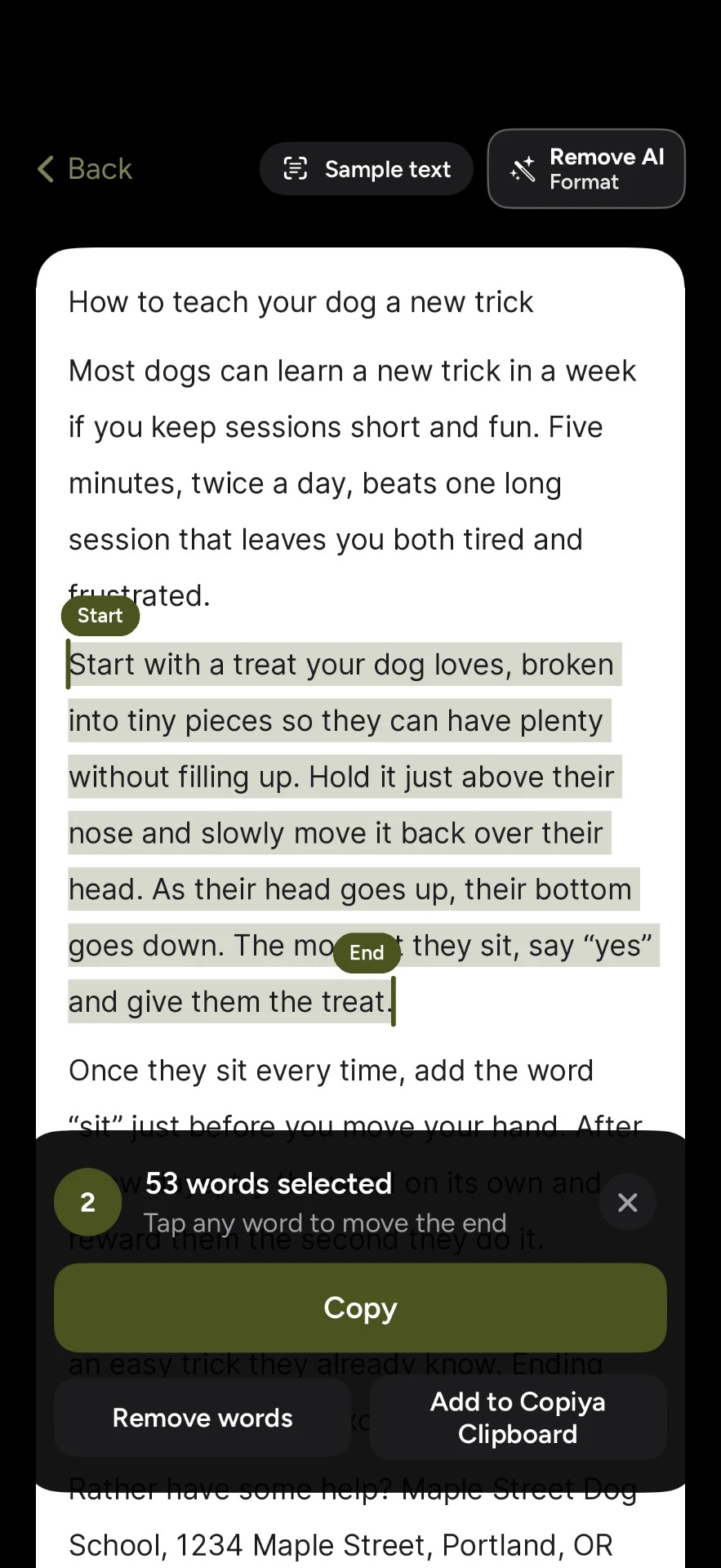
Double-tap copy is free and unlimited, needs no account, and reads the text on your iPhone itself. It also smooths out the fiddly parts:
- Green tap-to-copy: phone numbers, emails and addresses on screen show in green, and one tap copies just that.
- Leave words out: skip a name, timestamp or line in the middle before you copy.
- Copiya Clipboard: keeps the pieces you copy with it for 24 hours. Copies made this way stay on the iPhone clipboard for 60 seconds, so paste soon.
- Remove AI Format: text from a chatbot like Gemini or ChatGPT pastes clean. Long dashes become commas, and AI credit lines and "Would you like me to...?" endings are dropped. It uses no AI itself.
On iPad, use Copiya Select in Control Center (iPadOS 18 or later) or an AssistiveTouch shortcut. For something longer than one screen, like a long post or a whole chat, OverFlow in Copiya Premium captures it as text. Premium is $2.99 a month, $19.99 a year or $29.99 once, with a 14-day free trial.
Copying from Messages, Mail, WhatsApp, Files and Photos
- Messages: touch and hold a bubble, then tap Copy for the whole message, or Select (iOS 26 and later) for part of it. There's no built-in way to copy an entire thread or group text at once; you copy one bubble at a time. To copy a text before sending it, select it in the message box and tap Copy. To send a message on to someone else, touch and hold it, tap More, then tap the forward arrow.
- Mail: select text the usual way. Cut and paste work in an email you're writing.
- WhatsApp and Facebook: in most cases, touch and hold a message or comment and look for Copy in the menu. Cut and paste work in the box where you type. Captions and posts often have no Copy option.
- Chatbots and Google Translate: apps like Gemini, ChatGPT and Google Translate usually have their own copy icon under each answer or translation.
- Files, documents and PDFs: to copy a file, touch and hold it, tap Copy, open another folder, touch and hold an empty spot and tap Paste. To copy text out of a PDF or document, such as a resume, open it and select text as usual; a scanned page with no selectable text needs Live Text.
- Photos: to copy words in a photo or screenshot, touch and hold the text to use Live Text (iOS 15 and later, iPhone XS/XR or newer). To copy a person or object without the background, touch and hold the subject and tap Copy (iOS 16 and later, same models). Screenshots: in most cases, tap the preview after taking one, tap Done (a checkmark in iOS 26 and later) and choose Copy and Delete to copy it without saving it to Photos.
- Other languages: copying works the same; to translate a selection, tap Translate in the edit menu.
When an app won't let you select anything, see how to copy text from an app that won't let you.
Copy and paste between iPhone, iPad and Mac
Universal Clipboard lets you copy on one Apple device and paste on another. Apple says each device needs to be signed in to the same Apple Account, have Bluetooth and Wi-Fi turned on, have Handoff turned on, and be near the other. Copy as usual, then paste on the other device soon, because the item stays available only briefly.
On a Mac or an iPad with a keyboard, Command-C copies, Command-X cuts and Command-V pastes.
Why can't I paste on my iPhone? Fixes, plus how to undo a paste
- Nothing to paste: iPhone holds one copied item at a time, and copying something new replaces it. Copy the text again.
- You're not in a text field: Paste only appears where you can type. Tap inside the box first.
- "Allow Paste" keeps asking, or one app won't paste: go to Settings > Apps, tap the app, tap Paste from Other Apps and choose Allow or Ask. On iOS 17 and earlier the app is listed directly in Settings. If it's set to Deny, that app can't paste what you copied elsewhere. In most cases an app only shows up there after it has asked to paste at least once. If an app such as Google Translate keeps offering to paste, setting it to Deny stops that in most cases; otherwise clear its text box with the X.
- Remove a paste: swipe left with three fingers, or shake your iPhone and tap Undo (Shake to Undo is in Settings > Accessibility > Touch). If you've typed since, undo steps back through your typing first, so it can be quicker to select the pasted text and delete it.
- Get an older copy back: as of iOS 27, iPhone has no built-in clipboard history, so a replaced copy is gone. A clipboard app keeps more than one item.
- Still stuck: restart your iPhone and update in Settings > General > Software Update.
For passwords and one-time codes, let iOS AutoFill or your password manager fill them in. It's safer than copying them.
Copy and paste on iPhone 17, 16, 15, SE and older: what's different
The core steps (select, Copy, Paste) are the same on every iPhone. What you get on top depends on your iOS version, which you can check in Settings > General > About:
| Feature | Needs |
|---|---|
| Three-finger copy, cut, paste and undo | iOS 13 or later |
| Live Text (copy words in photos) | iOS 15 or later on iPhone XS/XR or newer |
| Paste from Other Apps setting | iOS 16.1 or later |
| Select part of a message | iOS 26 or later |
| Paste button above the keyboard | iOS 27 |
According to Apple, iOS 27 runs on iPhone 11 and later, including every iPhone 16, 16e, 17, 17e, Air and 18 Pro, plus iPhone SE (2nd and 3rd generation), so those models get everything above. iPhone XS and XR stop at iOS 18, iPhone 8 and X at iOS 16, iPhone 6s and 7 at iOS 15, and iPhone 6 and 5s at iOS 12 (iPhone 5 stops at iOS 10), which has the basic select, Copy and Paste but no three-finger gestures.
Questions people ask
Where is the copy and paste button on iPhone?
There's no permanent button on screen or in Settings. Both live in a small pop-up edit menu that only appears once text is selected or a text field is tapped. On iOS 27, a "paste from [app]" shortcut also appears above the keyboard right after you copy something.
How do I paste in Messages on iPhone?
Tap the message box at the bottom, tap it again and choose Paste, then tap Send. A pasted photo or link shows as a preview first, and you can remove it with its X before sending.
Why is there no paste option on my iPhone?
Paste only shows when something is on the clipboard and you've tapped inside a box you can type in. Some boxes, like certain password or code fields, block pasting on purpose. Otherwise, copying again fixes most cases.
How do you copy and paste on iPhone 17?
The same way as on earlier models. If you don't see the paste button above the keyboard, check Settings > General > About; you're likely still on iOS 26, and Software Update will bring iOS 27, which every iPhone 17 model supports.
How do I copy and paste on iPhone without selecting?
For some things, yes: a whole Messages bubble copies with touch and hold, a link with Copy Link, and words in a photo with Live Text. For everything else, iOS needs a selection, while the Copiya app only needs a tap on the first and last word.