
How to Copy and Paste on iPad: Touch, Keyboard, Trackpad and Pencil
iPad gives you five ways to copy and paste: touch, three-finger gestures, a hardware keyboard, a trackpad or mouse, and Apple Pencil, plus drag and drop between apps and Universal Clipboard from iPhone or Mac. For text an app won't let you select, the Copiya app copies it using Copiya Select in Control Center (iPadOS 18 or later) or an AssistiveTouch shortcut.
To copy and paste on iPad, double-tap a word to select it, tap the highlight, tap Copy, then tap where it should go, tap the cursor and tap Paste. That works on every iPad, old or new, including iPad Pro, Air and mini. Steps below match Apple's iPad User Guide for iPadOS 26 and iPadOS 27.
New to the terms? Copy puts a duplicate of what you selected on the iPad's clipboard, Cut removes it from where it was and puts it there, and Paste drops it wherever your cursor is.
How to copy and paste on iPad with your fingers (no keyboard or mouse)
1. Select the text
- One word: double-tap it with one finger.
- A paragraph: triple-tap it.
- Any amount of text: double-tap and hold the first word, then drag. Adjust the start and end with the grab points at each end of the highlight.
- Everything in a box you're editing: tap the cursor and, in most apps, tap Select All.
Placing the cursor on a big screen is fiddly. Touch and hold the Space bar on the onscreen keyboard until the letters disappear, then slide your finger to move the cursor. To select while you're in this mode, tap the keyboard with a second finger and keep dragging. In many apps the shortcut bar above the onscreen keyboard also shows undo and redo, plus Cut, Copy and Paste buttons when text is selected; the buttons vary by app.
2. Copy or cut
Tap the highlighted text to open the edit menu, then tap Copy. To move text instead, tap Cut; Cut only appears where you can edit, like a note or an email you're writing. If you don't see the option you want, tap the arrow at the end of the menu to show more.
3. Paste
- Tap where the text should go, such as a note, a message box or a search field.
- Tap the cursor again to open the edit menu.
- Tap Paste.
To copy a link, touch and hold it and tap Copy Link. To copy an image in Safari, touch and hold it and tap Copy.
The three-finger gestures
These skip the edit menu once text is selected:
| Gesture | What it does |
|---|---|
| Pinch closed with three fingers | Copy |
| Pinch closed with three fingers two times | Cut |
| Pinch open with three fingers | Paste |
| Swipe left with three fingers, then tap Undo at the top | Undo, like a paste you didn't mean |
| Swipe right with three fingers, then tap Redo | Redo |
How to copy and paste on iPad with a keyboard
With a Magic Keyboard, Smart Keyboard, keyboard case or any Bluetooth keyboard, these are the keys Apple lists:
| Keys | What it does |
|---|---|
| Command-C | Copy |
| Command-X | Cut |
| Command-V | Paste |
| Command-A | Select all |
| Command-Z | Undo |
| Shift-Command-Z | Redo |
Coming from a Windows PC? On iPad, Command does the job Control does on a PC, so it's Command-C, not Control-C. To select text from the keyboard, hold Shift and press the arrow keys. If your keyboard has no Command key, check Settings > General > Keyboard > Hardware Keyboard > Modifier Keys to see or change which key acts as Command.
Paste without formatting: Pages for iPad supports Option-Shift-Command-V to paste and match the style of the surrounding text. Other apps decide for themselves whether they offer it, so on iPadOS 26 and later look in the app's Edit menu in the menu bar.
The menu bar (iPadOS 26 and later): when Windowed Apps or Stage Manager is on, apps have a Mac-style menu bar with an Edit menu holding Copy, Cut and Paste. On a keyboard with a Globe key, press Globe-M to show it. On iPadOS 27 you can also tap the app's name in the top-left corner of the screen; on iPadOS 26, swipe down from the middle of the top edge. The menu bar's menus also list each app's keyboard shortcuts (on iPadOS 18 and earlier, hold Command to see them).
With a trackpad, a mouse or Apple Pencil
- Trackpad or mouse: click and drag across text to select it, or double-click a word. Then secondary-click the selection (click with two fingers on a trackpad, or use the right button on a mouse) and, in most apps, choose Copy. To paste, secondary-click where you're typing and choose Paste in most apps, or just press Command-V. On a Magic Mouse, turn on secondary click in Settings > General > Trackpad & Mouse.
- Apple Pencil: with Scribble on, draw a circle around text or underline it to select it, and the editing options appear. Double-tap a word with the Pencil to select it, or triple-tap to select a paragraph. Tap Copy, then tap where it should go and tap Paste. Scribble's switch is in Settings > Apple Pencil.
Copy between apps on iPad: drag and drop
With two apps on screen, you can skip copy and paste altogether. Select the text, touch and hold it until it lifts up, then drag it into the other app's window and let go. Apple's rule: dragging between two apps copies the text, while dragging within one app moves it. Some third-party apps don't accept drops, so use Copy and Paste there.
Only one app on screen? Keep holding the lifted text, swipe up from the bottom edge with another finger to show the Dock, drag over the other app until it opens, then drop.
Copy and paste in Notes, OneNote, Word and PowerPoint
The touch, three-finger and keyboard methods above work the same in Notes, Pages and Mail, and in most cases in OneNote, Word and PowerPoint for iPad. To copy from a note in Notes into another app, select the text in the note, copy it, then switch apps and paste. The Office apps usually also have their own Copy and Paste buttons in the toolbar, and spreadsheet apps such as Numbers and Excel may offer their own paste options, like pasting values only.
The Copiya way: copy text the iPad won't let you select
Everything above needs text you can select. For words inside a photo or screenshot, try the free built-in Live Text first: touch and hold the text in the photo, then tap Copy (on supported iPads). But plenty of text can't be selected at all, like many captions, comments, bios and chat bubbles. The Copiya app reads the text on your screen instead, so in most cases it doesn't matter whether the app allows selecting.
iPad has no Back Tap, so you start Copiya one of two ways: Copiya Select in Control Center (iPadOS 18 or later) or an AssistiveTouch shortcut. Set up either one once, then:
- With the text on screen, open it from Control Center or tap your AssistiveTouch shortcut.
- Tap the first word you want.
- Tap the last word. Everything in between is selected.
- Tap Copy, then paste it anywhere the usual way.
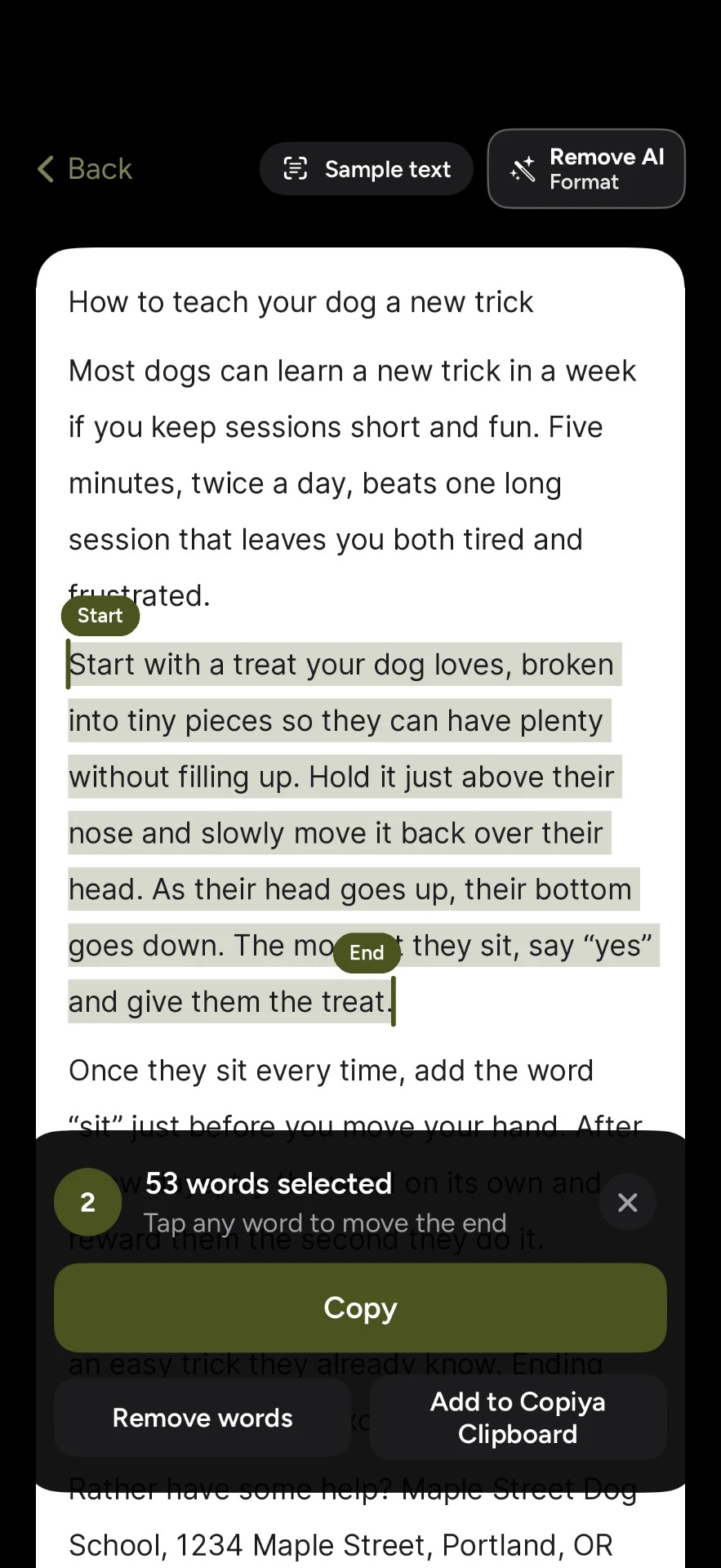
It needs no account and reads the text on the device itself. It also helps with:
- Green tap-to-copy: phone numbers, emails and addresses show in green, and one tap copies just that.
- Copiya Clipboard: keeps the pieces you copy this way for 24 hours. Each copy stays on the iPad clipboard for 60 seconds, so paste soon.
- Remove AI Format: text from a chatbot pastes without the usual AI formatting. Long dashes become commas, and AI credit lines and "Would you like me to...?" endings are dropped. It uses no AI itself.
For something longer than one screen, like a long post, a set of slides or a whole chat, OverFlow in Premium captures it as text. Premium is $2.99 a month, $19.99 a year or $29.99 once, with a 14-day free trial.
Copy and paste between iPad, iPhone and Mac
Universal Clipboard lets you copy on one device and paste on another. Apple's requirements: both devices have Wi-Fi, Bluetooth and Handoff turned on, they're signed in to the same Apple Account, and they're within about 30 feet (10 meters) of each other. On iPad, Handoff is in Settings > General > AirPlay & Continuity. If it isn't working, check those settings on both devices first, and turn off any VPN that blocks your local network.
Where does copied text go on iPad?
To an invisible clipboard that holds one item at a time. Copying something new replaces the last thing, and Apple doesn't list a built-in clipboard history for iPad, even in iPadOS 27, so in most cases a replaced copy can't be brought back. If you need several pieces at once, paste each into a note as you go, or use a clipboard app.
Copy and paste not working on iPad? Quick fixes
- No Paste option: make sure you've tapped inside a box you can type in, then tap the cursor again. If nothing is on the clipboard, copy the text again.
- "Allow Paste" asks every time: in most cases you'll find the fix in Settings > Apps: tap the app, then Paste from Other Apps, and choose Allow (on iPadOS 17 and earlier, the app is listed directly in Settings). The option usually appears only after the app has asked to paste at least once.
- Three-finger pinch does nothing: text has to be selected first, and some drawing apps and games use three fingers for something else.
- Keyboard shortcuts don't work: check that the keyboard is connected in Settings > Bluetooth (or seated properly on the Smart Connector).
- School or work iPad: if your organization manages the iPad, it may limit copying between apps. Ask your IT admin or teacher.
- Still stuck: restart the iPad and update it in Settings > General > Software Update.
iPad Pro, Air, mini and older models: what's different?
The touch steps are the same on every model, including iPad Pro 11-inch and 13-inch, iPad Air, iPad mini, iPad (A16) and the iPad 8th, 9th and 10th generation. What changes is what your iPadOS version and accessories add. Check your version in Settings > General > About.
| Feature | Needs |
|---|---|
| Touch, three-finger gestures, drag and drop | Any iPad on a recent iPadOS |
| Keyboard shortcuts | A hardware keyboard |
| Scribble selection | A supported Apple Pencil |
| Menu bar with an Edit menu | iPadOS 26 or later, with Windowed Apps or Stage Manager on |
Older iPads that can't update still copy and paste with touch. For the iPhone version of all this, see how to copy and paste on iPhone, and for speed tricks that work on both, how to quickly copy and paste.
More guides: how to copy text from an app that won't let you and copy and paste apps compared.
Questions people ask
How do you copy and paste on an iPad without a keyboard or mouse?
Your fingers are all you need on any iPad; the touch steps at the top of this guide work without any accessories. If precise taps are hard, turn on Zoom in Settings > Accessibility to enlarge the screen first, or use the Space bar trick to place the cursor.
What buttons copy and paste on an iPad keyboard?
Command-C and Command-V. On a keyboard case or Magic Keyboard, the Command key sits right next to the space bar; press it first and hold it while you tap the letter.
Can you cut and paste on an iPad?
Yes, on every iPad, including iPad Pro and iPad mini. Paste cut text before you copy anything else: a new copy replaces it, and the only way back is Undo (Command-Z or a three-finger swipe left) in the place you cut it from.
How do I copy from my iPhone and paste on my iPad?
Copy on the iPhone, then paste on the iPad soon after, because the shared item expires quickly. It works best for short text and single images; for a long document, AirDrop or a shared note in iCloud is more reliable.
How do I copy highlighted text on iPad if Copy doesn't show?
Tap the highlight itself, not the space around it; tapping outside the selection clears it and you have to select again. If the text won't highlight at all, see the section above on text the iPad won't let you select.