
How to Take a Scrolling Screenshot on iPhone
Take an ordinary screenshot, open the capture, and tap Full Page. That is the long screenshot on iPhone. Apple's screenshot article documents no scrolling gesture and no setting that turns one on, and does not describe Full Page at all, so expect it on some screens and not on others. Two surprises follow it: a long capture can be written as a PDF into Files rather than as an image into Photos, and on iOS 26 the screenshot opens by itself rather than waiting as a thumbnail in the lower-left corner, which is where walkthroughs written before iOS 26 still tell you to look.
Does the iPhone have a scrolling screenshot?
Not as a separate gesture. Apple's article, Take a screenshot on your iPhone, published October 15, 2026, documents three button combinations and no long-screenshot gesture at all:
- iPhone with Face ID: "Press the side button and the volume up button at the same time," then "Quickly release both buttons."
- iPhone models with Touch ID and side button: the side button and the Home button together.
- iPhone models with Touch ID and top button: the top button and the Home button together.
Full Page is not described anywhere in the body of that article. Its only mention is a link under "Learn more" titled "Take a full-page screenshot or capture a screen recording on your iPhone." As of November 2026 that link returns Apple's "The page you're looking for can't be found" page. So the steps for the thing you came here for are not published where Apple points you to them.
What Full Page is, in practice: an option by that name inside the screenshot editor. A CNET walkthrough from April 2025 describes choosing it after the capture opens, then cropping and tapping Done.
How to take a full page screenshot on iPhone
Apple's article covers the capture itself. The steps after it come from two dated walkthroughs.
- Open the page you want, in Safari or another app that offers the option.
- Take an ordinary screenshot with the button combination for your iPhone, above.
- Open the capture. Apple's article splits this by iOS version. In iOS 26, "your device automatically displays the screenshot with quick tools available." "In iOS 18 and earlier, a thumbnail temporarily appears in the lower-left corner of your screen," and you have to tap it before it goes.
- Tap Full Page, if it is offered.
- Crop if you want less than the whole thing, then tap Done and choose where to save it.
Step 3 is where the older walkthroughs no longer match. A CNET piece by Nelson Aguilar and Blake Stimac, dated April 1, 2025, tells readers to "Tap the screenshot preview that appears in the bottom-left corner. It appears for about five seconds, so be quick." A Rocket Yard post from February 22, 2023 also describes tapping a thumbnail in the lower left corner. Both predate the behavior Apple now describes for iOS 26. Apple scopes the corner thumbnail to iOS 18 and earlier, so on iOS 26 there should be nothing to catch.
Where a long screenshot is saved: PDF or Photos
A normal screenshot goes to Photos as an image. A long one may not, and Apple does not document the difference in that article.
The February 2023 Rocket Yard post says scrolling screenshots are saved as PDFs, unlike a single screen, which is saved as a PNG. The CNET piece from April 2025 describes a save step offering Save PDF to Files or Save to Photos (if available), and gives this as its own rule of thumb: if the capture is longer than your phone's screen you get the PDF only, and if it is not, Photos should be there too. The article itself notes that Apple's support page does not define the exact parameters, so treat it as a pattern rather than a specification. The reliable move is to reach the save step and read the options you are actually offered.
CNET's walkthrough has you tap Save PDF to Files, which puts the capture in the Files app rather than in Photos. If you saved to Photos instead, Apple's own route to it is: "Open Photos, then go to Collections and tap Media Types. Tap Screenshots."
The ten-second test: does this screen support it?
Rather than guessing, check. Open the app, take one ordinary screenshot, open the capture, and read the options.
- Full Page is offered: tap it, then Done, then save it.
- It is not there, and you are sure the capture is open rather than a thumbnail you missed: this screen has no Full Page option, and nothing in the article above describes a setting that adds one.
Test the exact screen you want rather than the app in general. Which apps and which screens offer the option is not documented by Apple, so the capture in front of you is the only answer that counts.
When Full Page is not working, or there is no Full Page option
If the option is not there, nothing is necessarily broken. Apple's article documents no toggle and no permission for this, so there is nothing published to appeal to either way.
One thing is worth ruling out first. Try the same kind of content in Safari. The February 2023 Rocket Yard post describes the feature working in Apple's first-party apps, "like Safari, Mail, or iMessage", which makes Safari the easiest place to confirm the option exists at all. If a web page gives you the option and the app you started in does not, that tells you something about the app rather than about your iPhone.
Past that point, the alternatives are to stitch screenshots you take yourself, or to capture past the bottom of the screen some other way. Both are below.
Long threads, notes, documents and pages
A long note or document
Run the test on it: if Full Page is offered, that is your capture in one pass, and if not, stitching is the fallback. Before either, consider whether an image is what you want at all. When the text can be selected in that app, selecting and copying it leaves you something searchable and editable rather than a tall picture or a PDF.
A text conversation
Apple's Messages lets you select and copy part of a thread, which is covered in how to copy an entire text conversation on iPhone. Capture it as an image only when you specifically want the bubbles, the timestamps and the look of it.
A whole webpage
A web page in Safari is the example the CNET walkthrough uses, and the Rocket Yard post names Safari among the apps the feature worked in, which makes it the easiest case to get working. The catch is the output: if what you want back out of a long article is its text, a PDF is a clumsy container for it.
The Copiya way: when you want the words, not the picture
Worth asking before you fight with captures: do you want an image, or do you want what it says? The Copiya app is built for the second case, and it answers the three shapes of it differently.
For text on the screen in front of you, double-tap the back of your iPhone, tap the first word you want, tap the last word, then tap Copy. You mark the span by its ends instead of dragging grab points, and you can leave words out of the middle.

For a whole webpage, the Copiya Safari extension captures the page as a picture, a PDF or clean text, which matters when the text is the point.
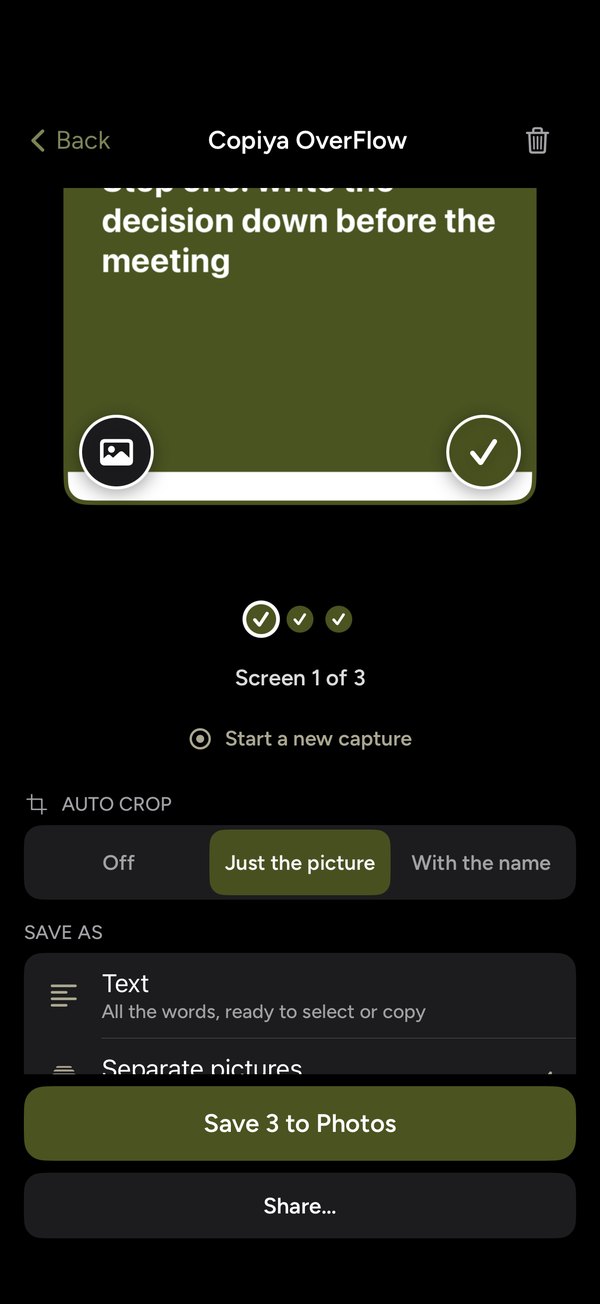
For an app where no Full Page option appears, OverFlow, in Premium, captures content longer than one screen and returns it as text, as cropped pictures, as a grid or as one tall picture.
Text you copy with the Copy button goes to the system clipboard and stays there for 60 seconds, so paste it inside that window. Pieces you save to Copiya Clipboard keep until you delete them. Phone numbers, emails and addresses turn green for a one-tap copy. There is no account, and the text is read on your device. The free tier covers 25 copies for life, and Premium is unlimited at $2.99 a month, $19.99 a year or $29.99 once, with a 14-day free trial.
If the text is long but still fits an ordinary selection, the built-in routes are in how to copy long text on iPhone.
Combining and stitching screenshots instead
When no Full Page option appears and you still want one image, the fallback is several overlapping screenshots, stitched together.
- Capture in overlapping passes. Scroll roughly two thirds of a screen between shots rather than a whole screen, so you have an overlap to line up and nothing falls through the gap.
- Keep them in order. It is easier to get the sequence right before you join than to work out afterwards which shot went where, and that matters more than it sounds once you have eight of them.
- Join them. Copiya's share sheet takes up to 10 screenshots at once and joins them into one, so you can select them in Photos and share them from there.
Long screenshots on iPad
Apple's Take a screenshot on your iPad article, also published October 15, 2026, gives two button combinations, "Press the top button and either volume button at the same time" on iPads without a Home button and "Press the top button and the Home button at the same time" on iPads with one, then "Quickly release both buttons." It does not mention Full Page.
So the ten-second test is the way to tell on a given iPad screen: take the screenshot, open the capture, and see what you are offered.
Copiya on iPad starts from Copiya Select in Control Center (iPadOS 18 or later) or an AssistiveTouch shortcut rather than a back tap. The rest of the iPad selecting and copying routes are in how to copy and paste on iPad.
For everything else about capturing and copying what is on screen, start with how to copy and paste on iPhone.
Questions people ask
Can you take a long screenshot on iPhone?
Yes, on the screens that offer Full Page. Press the two buttons for your iPhone to take an ordinary screenshot, open the capture, and tap Full Page. Where it is absent, Apple's screenshot article documents no built-in alternative for that screen, so the fallbacks are overlapping screenshots joined together, or OverFlow in Copiya Premium.
Why is my scrolling screenshot not working, with no Full Page option?
It may not be a failure at all: that screen may simply not offer Full Page. First make sure you actually opened the capture, since on iOS 18 and earlier the corner thumbnail vanishes within seconds. Then try the same kind of content as a web page in Safari, which a February 2023 Rocket Yard post names among the apps the feature worked in, so it serves as a control.
How do I take a long screenshot on iPhone on iOS 26?
On an iPhone with Face ID, press the side button and the volume up button at the same time; on a Touch ID model, press the side button or the top button together with the Home button, then quickly release both. On iOS 26 the capture opens on its own, so look for Full Page in it rather than waiting for a thumbnail in the lower-left corner. If that screen does not offer Full Page it will not be there, and Apple documents no setting that adds it.
Can you take a scrolling screenshot on iPhone in any app?
Not everywhere. Which apps and screens offer Full Page is not documented by Apple, so a single screenshot of the screen you want is the only reliable answer. Where the option is absent, the routes are overlapping screenshots joined together, or OverFlow in Copiya Premium, which captures content longer than one screen.
How do I screenshot an entire text conversation on my iPhone?
Take one ordinary screenshot of the thread and open it to see whether Full Page is offered. If it is not, take overlapping screenshots and join them. If the words matter more than the bubbles, copying the messages as text is the better outcome, since you can then paste and search them.
How do I screenshot an entire note or a long document on iPhone?
Screenshot the note or document and open the capture: if Full Page is offered, that gets the whole thing in one pass. If not, scroll and capture in overlapping passes and stitch them. For a document you intend to quote from, selecting and copying the text is worth doing instead, since copied text can be pasted and edited directly.
How do I combine screenshots on iPhone?
Take them with an overlap so nothing is lost between shots, check they are in order, then join them with an app, since the joining is the part iOS leaves to you. Copiya's share sheet accepts up to 10 screenshots per join, so a capture that runs past 10 screens will not fit a single join.
Can you take a scrolling screenshot on iPad?
Apple's iPad screenshot article does not document Full Page, so there is nothing to rely on but the capture itself. Press the top button and either volume button at the same time, or the top button and the Home button on an iPad that has one, open the capture, and look for the option there.