
How to Copy an Entire Text Message Thread on iPhone
Apple documents Copy for a single message and multi-select only for forwarding, so there is no copy all for a conversation and every route from here is a trade-off. Forwarding gathers the messages you picked into one new message you can copy from, screenshots keep the bubbles and timestamps as pictures, and the Copiya app lifts what is on screen as editable text, with Premium OverFlow reaching past it.
The short answer
To copy a whole text message thread on iPhone, touch and hold a bubble, tap More, select the messages you want, tap forward, and copy the text that gathers in the new message. Apple does not document that last step, so there is a fallback below if your version will not play along.
Apple documents the single-message steps below for both iOS 26 and iOS 27; the forwarding steps come from its iOS 27 guide. Nothing changes whether you want to copy an iMessage conversation or an SMS conversation.
| Route | What you get | How many messages | Free? |
|---|---|---|---|
| Touch and hold, Select, Copy | Text you can paste anywhere | One message, or part of one | Yes |
| More, then forward to yourself | The messages as plain text, in order | As many as you select | Yes |
| Screenshots | Pictures with bubbles and timestamps intact | One screen per shot | Yes |
| The Copiya app | Editable text, past the screen with Premium OverFlow | What is on screen, or longer with Premium | 14-day free trial, then Premium |
Copy one message, or part of one
Apple's instruction for copying part of a message is short: touch and hold the message, tap Select, select the text you want to copy, then tap Copy. Apple documents that in both the iOS 26 and iOS 27 versions of the iPhone User Guide, and it is how you take half a message instead of all of it. For older iOS versions and apps with no Select, see how to copy part of a text message on iPhone.
Widen that selection to the whole bubble and the message is copied. The clipboard is the limit, not Messages: it holds one item and each copy replaces the last, so paste each piece before you copy the next.
Copy multiple text messages by forwarding them to yourself
Forwarding is how you move more than one text at a time. Apple documents the first three steps; the copy at the end is where guides differ:
- Open the conversation, then touch and hold a message bubble you want to forward.
- Tap More, then tap to select one or more messages to forward.
- Tap the forward button. Apple's steps show an icon here rather than a word.
- Touch and hold the text that gathers in the message field, then choose Select All and Copy. Nothing has to be sent.
- If that text will not select, enter your own phone number as the recipient, send it, and copy it out of what arrives.
Step 4 comes from a walkthrough updated in October 2026 rather than from Apple, and we could not confirm it on a device. Apple does not describe how a multi-message forward arrives either, so expect to find out which of the two your version allows. Either way you copy once or twice instead of once per bubble, which is the point of the detour.
What you lose is the shape of the conversation. Forwarded messages carry no bubbles and no timestamps, and in most cases nothing marking who said what, which is why Apple adds its own tip: to show the message bubbles and timestamps just as they appear in a conversation, send a screenshot as an attached image instead of forwarding messages. If the who and when matter, label the lines after pasting, or use screenshots.
How to save a text conversation as screenshots, then email or print it
Screenshots keep the look as pictures: names, bubble colors, times and reactions. Apple's wording for taking one is to quickly press and release the side button and the volume up button at the same time, or the Home button and the side button on an iPhone SE. Then scroll and repeat.
Apple documents Full Page, the option that captures content beyond the edge of the screen, for page capture, with an entire webpage in Safari as its example, and does not document it for Messages. Expect single-screen shots there, so a long thread means a stack of separate images.
To find them, open Photos, tap Collections, scroll to Media Types, then tap Screenshots. Select the shots you want, and the share button offers Mail, Save to Files and Print in most versions. The share sheet in the app below also joins up to 10 screenshots.
The Copiya way: the thread as text you can paste
When you want the words rather than pictures of the words, the Copiya app reads what is on your screen and hands the text over. Set the trigger once in Settings > Accessibility > Touch > Back Tap > Double Tap and choose it there. After that:
- Double-tap the back of your iPhone with the conversation on screen.
- Tap the first word you want, then tap the last word.
- Tap Copy, and paste it wherever you need it.
That takes the span between the two taps, so a screen of back and forth arrives in one go and in order, with no new message to delete. Leave words out drops something inside that span, which matters in a text thread: a line you would rather not keep never enters the copy. Your first 25 copies are free (Copiya Premium is unlimited), the text is read on the iPhone itself, and there is no account to make. Text you copy with Copiya stays on the clipboard for 60 seconds. Pieces you save with Copy to Copiya Clipboard are kept until you delete them.
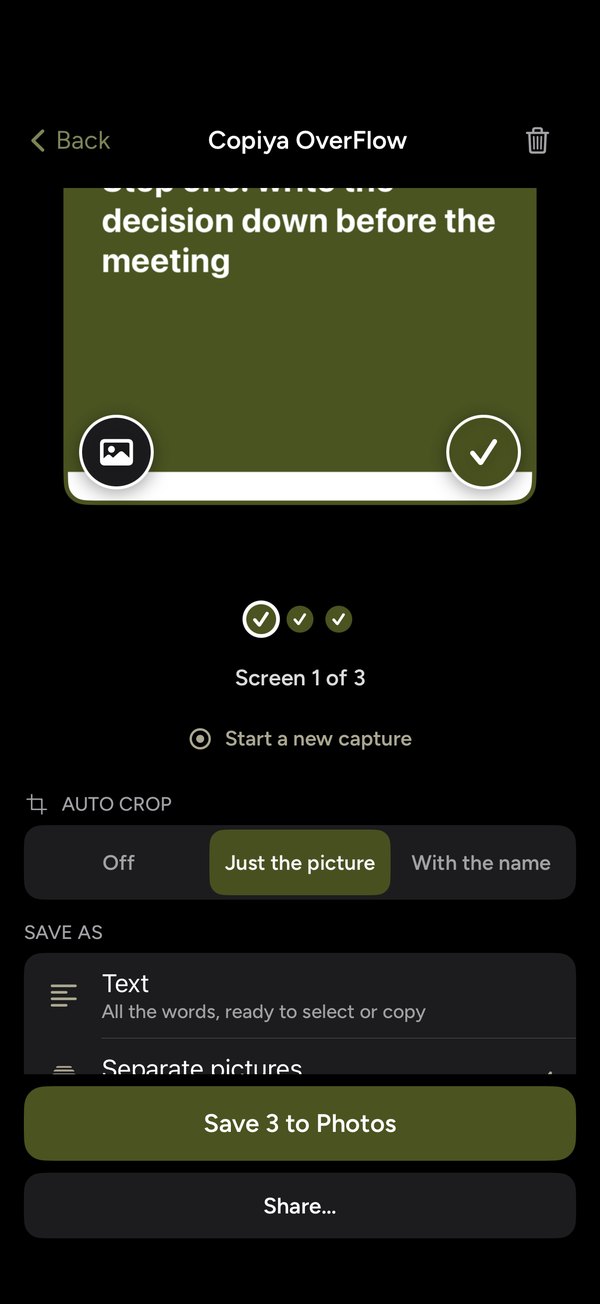
A real thread runs past the bottom of the screen, which is what OverFlow is for: it captures content longer than one screen, chats included, as text, cropped pictures, a grid or one tall picture. It is part of Premium at $2.99 a month, $19.99 a year or $29.99 once, with a 14-day free trial, and a triple-tap saves a single screen. Be realistic about scale: that suits a long exchange, not years of history.
Export to PDF, to a computer, or for a court case
If the thread goes back years, no on-screen method is the right tool. Two honest routes:
- A Mac on the same Apple Account. Open the conversation in Messages there, where a pointer makes a long selection easy and the print dialog can usually save a PDF instead of printing. Apple's macOS 27 Messages guide has no page about printing a conversation, so treat those steps as likely rather than documented.
- A desktop export tool. Several Mac and Windows apps read an iPhone backup and write the messages out to a file. That is the realistic way to copy all text messages from iPhone to a computer in bulk. Copiya does not do this and is not pretending to.
We could find no save as PDF inside Messages. On the iPhone, the print sheet for your screenshots in Photos can usually hand you a PDF, and to export text messages from iPhone to email you send the forwarded text or the screenshots to yourself from Mail.
If the messages are for a lawyer, a dispute or anything that may be challenged, use a proper export or forensic tool and keep the originals on the device. Screenshots and copied text are easy to question, and nothing on this page is evidence grade.
Gotchas worth knowing
- Attachments stay behind. Copied and forwarded text is text, so photos and voice messages need their own trip.
- Reactions do not come along in text. Tapbacks are not part of a message's text, so in most cases they are left behind, and an edited message copies in whatever wording it shows now.
- Keep to your own conversations. Passing someone's messages on is a judgment call.
- Nothing selects at all? That is usually a setting or a stuck app rather than Messages, and the fixes are in why can't I copy and paste on iPhone.
- Where copies live. The iPhone keeps one clipboard item with no history, explained in the iPhone clipboard and iPhone clipboard history, and the basics are in how to copy and paste on iPhone.
- On iPad, the Messages steps look the same and the screenshot buttons differ by model. Apple lists Back Tap as an iPhone feature. Start it there with Copiya Select in Control Center (iPadOS 18 or later) or an AssistiveTouch shortcut.
A long AI chat has the same shape and a couple of extra traps, covered in how to copy an entire ChatGPT conversation on iPhone.
Questions people ask
Is there a way to copy an entire text conversation on iPhone?
Not in one action. Forwarding is the nearest thing, and it stops at however many messages you are willing to select, which is why a whole history is a different job from a recent stretch.
How do I copy an entire iMessage or SMS conversation?
Identically. Blue iMessage and green SMS bubbles behave the same for selecting, forwarding and screenshots. The one thing to watch is the recipient: your own phone number is the safe choice, since an email address generally has to be one your Apple Account uses for iMessage.
How do I copy multiple text messages on my iPhone and send them to email?
Paste the copied block into a new mail message rather than addressing it from Messages. Mail takes any address, and it is where you can add back the labels that forwarded text loses.
How do I copy all text messages from one person on my iPhone?
Check whether Messages in iCloud is turned on first. If it is, a Mac signed in to the same Apple Account should already show that thread, and selecting it there with a pointer beats anything you can do on the phone.
Can I select multiple text messages and copy them without forwarding?
Not through multi-select. The workable alternatives are to select multiple text messages on screen in one pass with the Copiya app, or to copy bubble by bubble into a note, which is slow but keeps the order and lets you label who said what as you go.