
How to Copy an Entire ChatGPT Conversation on iPhone (and iPad)
ChatGPT's iPhone app copies one reply at a time, so a whole conversation takes one of three routes that keep it intact: create a share link and save that page as a PDF, request your data export from OpenAI, or lift the chat as text with the Copiya app, whose Premium OverFlow reaches past the bottom of the screen. The copy button under each reply gets you there too, one answer at a time.
Everything here works on any iPhone running iOS 26 or iOS 27, and on iPad, with one change noted at the end. Labels move between versions of the ChatGPT app, so yours may sit in a slightly different place.
There is no copy all button in ChatGPT
As of November 2026 the iPhone app has no Copy all, no Select all for a thread and no "export this chat" button, so the length of your conversation decides how much work this is. Four routes take a conversation off your iPhone, and only three of them take it whole:
| Route | What you end up with | Whole chat? | Free? |
|---|---|---|---|
| Copy button under a reply | The reply's text, one answer at a time | No, you repeat it | Yes |
| Share link saved as a PDF | A PDF page of the thread | Yes, up to the moment you share | Yes, but the link is on the web |
| OpenAI data export | A .zip with chat.html inside | Yes, your whole history | Yes |
| The Copiya app | Text you can edit and paste anywhere | Yes, past one screen with Premium OverFlow | 14-day free trial of Premium, then Premium |
Three built-in routes, and how much of the chat each one takes
1. The copy button under each reply
In most versions of the app there is a copy icon under each answer. Tap it and that reply's text lands on the clipboard, ready to paste into Notes, Word or Google Docs. What lands on the clipboard is usually the markdown ChatGPT wrote rather than the text you see, which is why stray symbols can turn up later (see below). Your own prompts are the catch: they usually have no copy button, so you touch and hold the message and select it by hand.
So this route is quick for one or two answers and slow for a twenty-message thread. If the text refuses to select at all, that is a different problem, covered in why can't I copy and paste on iPhone.
2. Create a share link, then save that page as a PDF
This is the quickest free way to get one chat into a single readable file.
- Open the conversation in ChatGPT and tap the share button at the top.
- Tap Create link or Copy link, whichever your version shows. On iPhone the app may hand you the iOS share sheet instead, with the link already copied.
- Paste the link into Safari's address bar and open it (more on copying links on iPhone).
- In Safari, save the page as a PDF. On most iPhones that is Share > Markup > Done > Save File To, which drops a PDF into the Files app. The same Share menu has Print if you want it on paper.
Two things OpenAI says about shared links that are easy to miss. First, the link is a snapshot of the conversation up to the point you shared it, so anything you say afterwards is not in it, and refreshing it means opening the share box again and choosing Update and Copy Link. Second, it is a real web address, so anyone who has it can read the conversation. By default it does not carry your name, and you can remove it from the three dots in the share box (Delete link), from the trashcan icon on the conversation, or under Settings > Data controls, where Shared links has a Manage button. If the chat is sensitive, stay with the copy button or the app below and keep it off the web.
3. Ask OpenAI for your data export
For every conversation rather than one, OpenAI's export is the official route, and its instructions are written for the website rather than the app: Settings > Data controls > Export data > Confirm export. In most cases the same path appears at chatgpt.com in Safari on your iPhone. OpenAI emails you a Download data export link and says that link expires after 24 hours, so open the email where you can actually keep the file. Inside the .zip is chat.html with your chat history. It is a backup, not a way to grab one answer.
The Copiya way: the chat as text you can paste
The routes above give you one reply at a time, or a page you cannot edit. When what you want is the conversation as text, Copiya reads what is on your screen and hands it over. Set Back Tap once in Settings > Accessibility > Touch > Back Tap > Double Tap and choose it, then:
- Double-tap the back of your iPhone with the conversation on screen.
- Tap the first word you want, then tap the last word.
- Tap Copy and paste it wherever you need it.
Those three steps take what is on the screen, which covers a short exchange. You can leave words out, so a prompt you would rather not keep never enters the copy. Your first 25 copies are free (Copiya Premium is unlimited), the text is read on the iPhone itself, and there is no account to make. Text you copy with Copiya stays on the clipboard for 60 seconds, and pieces you save with Copy to Copiya Clipboard are kept until you delete them.
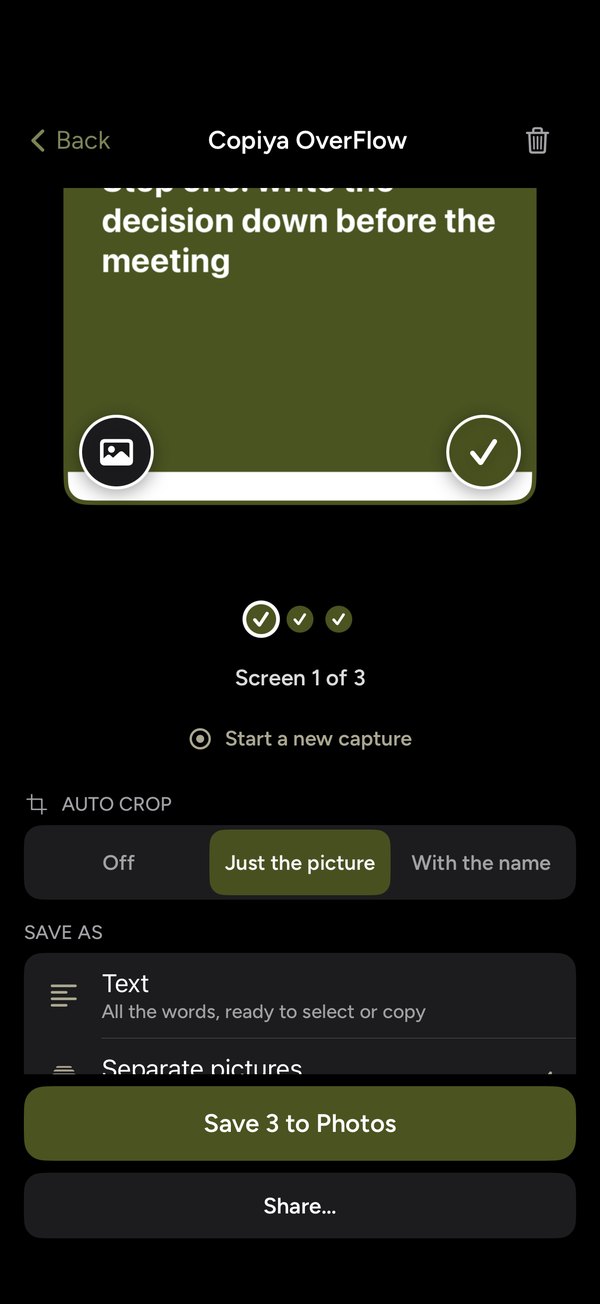
A real conversation runs past the bottom of the screen, which is what OverFlow is for: it captures content longer than one screen, chats included, as text. It is part of Premium: $2.99 a month, $19.99 a year or $29.99 once, with a 14-day free trial. A triple-tap saves a single screen instead, for when that is all you want.
For a chat you were already willing to share, the Safari extension can capture the share-link page as clean text, so the thread arrives as something you can edit. Only visible text is copied, so images in a chat are not, and this is never the tool for passwords or one-time codes.
Why asterisks and long dashes show up when you paste
This is the part the export guides leave out. ChatGPT writes in markdown, so a copied answer often carries ** around bold words and # in front of headings; the long em dashes inside its sentences are just how the model writes. Those symbols usually paste into Word as plain characters rather than real formatting, and the same happens in Google Docs on iPhone; the markdown setting that converts them lives in Docs on the web. In Messages or any plain text box you simply see the raw symbols.
Two honest fixes. Clean it up after pasting, with Find and Replace in Word or by hand in Notes. Or copy the words as they appear on screen rather than their markdown, which is what the app above does, since it reads the rendered text. Remove AI Format goes further and turns long dashes into commas and drops AI credit lines and the "Would you like me to...?" ending, using no AI of its own.
On iPad, and before you copy a long chat
Every route works on iPad except Back Tap, which iPad does not have: start it there with Copiya Select in Control Center (iPadOS 18 or later) or an AssistiveTouch shortcut. With a keyboard attached, open the share link in Safari and press Command-A then Command-C: in current versions that takes the whole page as text, page furniture included, which you trim after pasting.
- Load the whole thread first. On the share-link page in Safari, scroll from the top to the bottom of the conversation before you save or capture it, or it can stop where the page stopped loading.
- Read the thread through before you send it. A share address cannot be unsent, so check what a long chat reveals about you first.
- Paste as you go. The clipboard holds one item and the next copy replaces it, so put each piece into a note or document before you copy the next. The basics are in how to copy and paste on iPhone.
- Apps that block selection. Some AI apps do not let you select their text at all, which is covered in how to copy text from an app that won't let you.
Questions people ask
Can you copy an entire ChatGPT chat on iPhone?
Not in one tap inside the app. Expect a two-app job: ChatGPT hands over the link or the text, and Safari, Files, Notes or Word is where the conversation actually ends up.
How do I copy and paste the full ChatGPT conversation, not just one reply?
Work from the share-link page rather than hand-copying: as of November 2026 it keeps the prompts and answers in the order you had them, which is what gets lost when you copy replies one by one and paste them separately.
How do I copy a ChatGPT conversation link?
Tap the share button at the top of the chat, then Create link or Copy link. OpenAI has deprecated carrying on a conversation from a shared link, so whoever opens it gets a snapshot to read, not a chat to continue.
How do I copy a ChatGPT conversation to Word?
Paste the replies in, then clear the leftover ** and # symbols. In Word on iPhone and iPad, Find and Replace sits behind the Find button's Options, which is quicker than deleting them by hand.
How do I copy a ChatGPT conversation to Claude or another AI?
Paste it as plain text. Other assistants generally read markdown symbols fine, so there is rarely anything to strip; what matters is keeping your prompts and the answers in order and labeling who said what, or the next model loses the thread.