
Why Can't I Copy and Paste on My iPhone? Every Cause and Fix
When you can't copy and paste on your iPhone, it's usually one of four things: the app doesn't let you select that text, a newer copy replaced what you wanted, an app's own paste button is blocked by its Paste from Other Apps setting, or a glitch that a restart clears. Copying to an iPad or Mac has its own checklist (Fix 7). If an app simply won't let you select the words, the Copiya app copies them by reading the screen.
These fixes are for iOS 26 and iOS 27, on iPhone 11 and every newer model. Start with the row that matches what you see.
Find your symptom
| What you see | Most likely cause | Go to |
|---|---|---|
| Text won't highlight, or there's no Copy option | The app doesn't make that text selectable | Fix 1 |
| Paste doesn't appear, pastes something old, or your copy vanished | Not in a text field, or the clipboard was replaced | Fix 2 |
| An app's own paste button or link detection does nothing | Paste from Other Apps set to Deny, or a work app policy | Fix 3 |
| "Allow Paste" pops up every time | Paste from Other Apps set to Ask | Fix 3 |
| Copy and paste stopped working everywhere | A stuck clipboard or an iOS glitch | Fixes 4 to 6 |
| Started right after an iOS update | The iOS 26 or iOS 27 menu redesign | The iOS 26 and iOS 27 section |
| Copy on iPhone, can't paste on iPad or Mac (or the reverse) | Universal Clipboard requirements | Fix 7 |
Fix 1: The app won't let you select or copy the text
This is one of the most common reasons people can't copy on iPhone, and it isn't a fault. Many apps display captions, comments, bios, profile names and chat bubbles as text you can read but not select. Touching and holding does nothing, or the menu shows Reply and React but no Copy. iOS can't override that choice for the app.
Built-in things to try first:
- Look for the app's own Copy: touch and hold the message or comment, or tap the More (three dots) button. Some apps put Copy there instead of in the text.
- Messages: on iOS 26 and later, touch and hold a bubble and tap Select to copy just part of it; Copy takes the whole bubble.
- Live Text: take a screenshot, open it in Photos, touch and hold the words, then tap Copy. It works, but it leaves a screenshot behind.
- Websites: some sites block selecting with code. Safari's Reader view, when it's offered, often shows the text in a form you can select.
The Copiya way: copy text the app won't let you select
The Copiya app reads the words on your screen instead of asking the app for them, so in most cases it doesn't matter whether the app allows selecting. After a one-time Back Tap setup:
- With the text on screen, double-tap the back of your iPhone.
- Tap the first word you want.
- Tap the last word. Everything in between is selected.
- Tap Copy, then paste it anywhere the usual way.
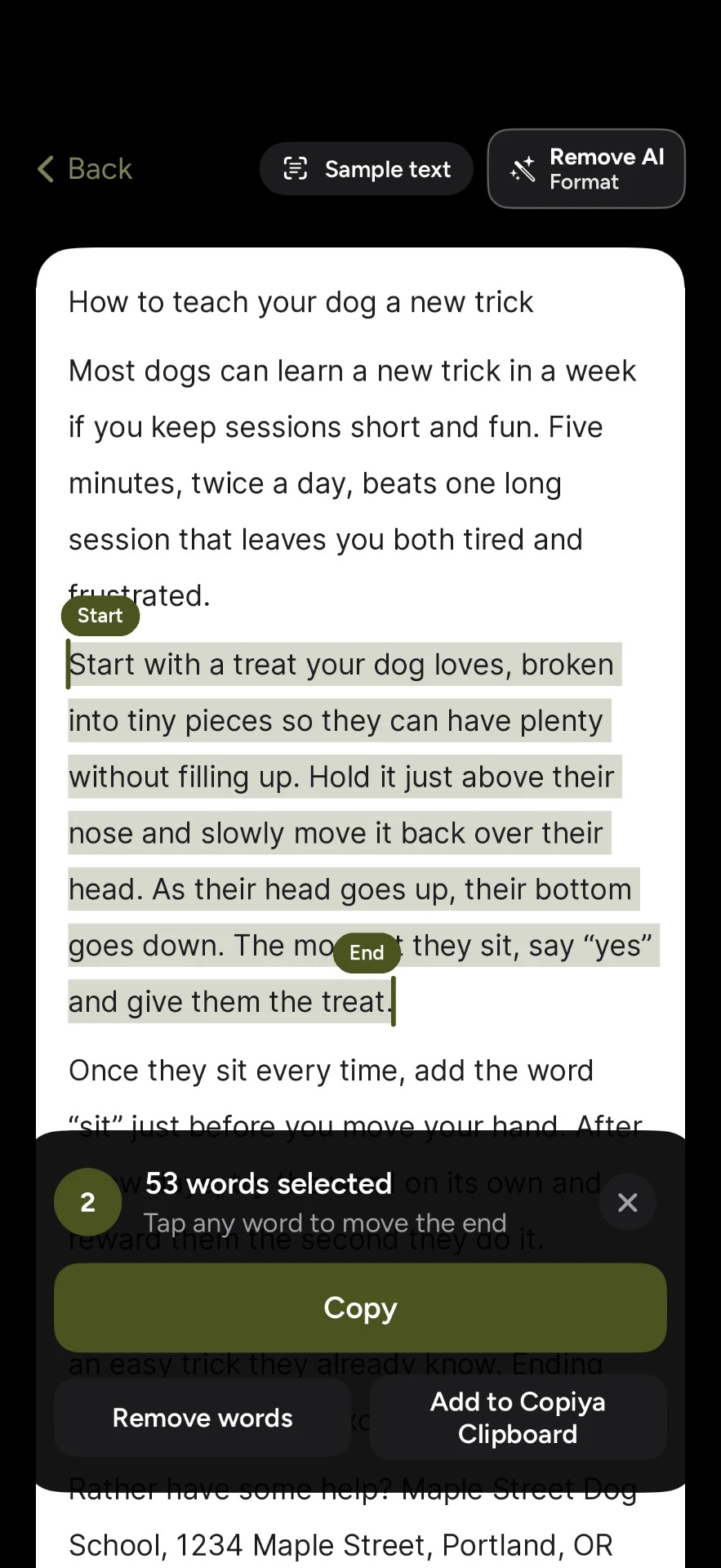
Double-tap copy is free and unlimited, needs no account and reads the text on your iPhone itself. Phone numbers, emails and addresses show in green so one tap copies just that, and you can leave words out, like a name or timestamp in the middle. For something longer than one screen, such as a long post or a whole chat, OverFlow in Copiya Premium captures it as text ($2.99 a month, $19.99 a year or $29.99 once, with a 14-day free trial). On iPad, use Copiya Select in Control Center (iPadOS 18 or later) or an AssistiveTouch shortcut. More app-by-app tips: how to copy text from an app that won't let you.
Fix 2: Paste is missing, pastes the wrong thing, or your copy disappeared
- Tap inside a box you can type in first. Paste only appears in a text field, like a message box, a note or a search bar. Then tap the cursor again to open the menu with Paste.
- Copy it again. Your iPhone holds one copied item at a time, and anything you copy next replaces it. iPhone has no built-in clipboard history, even in iOS 27, so an older copy can't be brought back.
- Copied text vanished? Something else replaced it. A common hidden cause: with Universal Clipboard, anything copied on your Mac or iPad (same Apple Account, nearby) lands on your iPhone's clipboard too. Restarting also empties it, and some password managers clear the clipboard after a set time. If another device keeps overwriting it, turn off Handoff on that device for a while.
- Some fields block pasting on purpose, such as certain password or verification-code boxes. Let AutoFill or your password manager fill those in.
- Pictures won't paste: the box has to accept images. Messages, Mail and Notes do; a search bar or a plain-text field usually doesn't. If an image copied from a website won't paste into Messages, save it to Photos first and copy it from there; that works in most cases.
Fix 3: Paste from Other Apps is set to Deny (or keeps asking)
Since iOS 16, apps ask before reading what you copied in another app, and iOS 16.1 added a per-app setting for it. The prompt shows "Allow Paste" or "Don't Allow Paste". If an app is set to Deny, its own paste buttons and automatic link or code detection stop working, which can look like copy and paste is broken. Touching and holding a text field and choosing Paste from the edit menu still works, because that's you pasting, not the app reading your clipboard. So try that first.
- Open Settings > Apps.
- Tap the app you're pasting into.
- Tap Paste from Other Apps and choose Allow (pastes without asking), Ask (shows the prompt each time) or Deny (blocks it).
The option usually appears only after an app has asked to paste at least once, so if it's missing, try pasting in that app first.
Work or school iPhone: if your organization manages the device or its work apps, it can stop you pasting from a work app into a personal one (or the reverse). That's a policy, not a bug; ask your IT admin.
Fix 4: Quit and reopen the app, then update it
If copying fails in only one app, open the app switcher (swipe up from the bottom of the screen and pause, or double-click the Home button on iPhone SE), swipe that app up to close it, then open it again. Then check the App Store for an update: tap your account picture and scroll to pending updates. App updates often fix paste bugs that appeared after a new iOS version.
Fix 5: Restart your iPhone
When copy and paste stops working in every app, a restart clears a stuck clipboard in most cases. The method that works on every model: Settings > General > Shut Down. Or press and hold the side button and either volume button (on iPhone SE, just the side button) until the slider appears, drag it, wait 30 seconds, then press and hold the side button until you see the Apple logo.
Fix 6: Update iOS, then the last-resort steps
- Update: go to Settings > General > Software Update. Bug-fix updates after a major release sometimes fix clipboard problems.
- Third-party keyboard: if you use one, tap the globe key to switch to Apple's keyboard and try again.
- Reset All Settings: Settings > General > Transfer or Reset iPhone > Reset > Reset All Settings. No data or media are deleted, but network settings (including saved Wi-Fi passwords), the keyboard dictionary, location and privacy settings return to their defaults, and Apple Pay cards are removed. Expect to set those up again, so try it last.
- Report it: if nothing works, tell Apple at apple.com/feedback so the bug gets counted.
Copy and paste stopped working after updating to iOS 26 or iOS 27?
Often it isn't broken. It just moved:
- iOS 26 redrew the edit menu, so Copy, Cut and Paste look different from older screenshots. If one is missing, in most apps tap the arrow at the end of the menu to see more options.
- iOS 26 screenshots open full screen by default, which changed where Copy and Delete lives (see the screenshot tip below).
- iOS 27 adds a "Paste from [app]" shortcut above the keyboard after you copy in one app and switch to another. If you don't see it, touch the text field and use Paste from the edit menu as before.
If it truly stopped working after the update, run Fixes 3, 5 and 6 in that order.
Fix 7: Copying between iPhone, iPad and Mac doesn't work
That's Universal Clipboard, and Apple lists four requirements: both devices are signed in to the same Apple Account, both have Bluetooth and Wi-Fi turned on, both have Handoff turned on, and they're near each other. The same checks apply in either direction. On iPhone and iPad, Handoff is in Settings > General > AirPlay & Continuity; on a Mac, in System Settings > General > AirDrop & Handoff.
- Paste soon. Apple says the shared item stays available only briefly.
- A family member's iPhone on a different Apple Account won't share a clipboard with you; send the text with AirDrop or Messages instead.
- Turn Handoff off and on again on both devices, restart both (a VPN can interfere in some cases, so try with it off), and install the latest update on each.
Every iPad method is in how to copy and paste on iPad, and Mac keys are in copy and paste shortcuts for Mac, iPhone and iPad.
Cut and paste, Notes and screenshots: specific cases
- Cut is missing: Cut only appears in text you can edit, like a note or a message you haven't sent. In a web page or a received email, you can only Copy.
- Notes won't paste: a locked note must be unlocked first, and a shared note you only have view access to can't be edited. Pasted text keeping odd fonts? Touch and hold in the note and choose Paste and Match Style where it's offered.
- Screenshot Copy and Delete not working: on iOS 26 and later the screenshot opens full screen; tap the checkmark at the top and choose Copy and Delete. With Full-Screen Previews turned off (Settings > General > Screen Capture), or on iOS 18 and earlier, tap the thumbnail first, then tap Done.
- Three-finger pinch does nothing: text must be selected first, and some games and drawing apps use three fingers for something else.
For the normal steps when everything works, see how to copy and paste on iPhone.
Questions people ask
Why can't I copy and paste on my iPhone anymore?
Most often after an iOS update, the menu moved rather than broke: iOS 26 redesigned the edit menu, and iOS 27 added a paste shortcut above the keyboard. If it really fails, a restart and the latest bug-fix update solve most cases.
Why can't I copy and paste on my iPhone 15 or iPhone 16?
The model doesn't matter; iPhone 15, 16, 17 and older models all use the same clipboard. What differs is the iOS version, which you can check in Settings > General > About. Every iPhone 15 and 16 can run iOS 27, so updating is worth trying.
Why can't I paste anything on my iPhone?
Tap inside the text box until the cursor and keyboard appear; Paste won't show before that. If Paste appears but nothing lands in any app, restarting your iPhone (Settings > General > Shut Down) fixes it in most cases.
Why can't I copy from my iPhone and paste on my iPad?
Usually one device is on a different Apple Account or has Handoff off. Also copy again right before you paste on the iPad, because the shared item expires quickly. If it still fails, AirDrop the text instead.
How do I fix copy and paste not working on iPhone in one app only?
If pasting into it is the problem, touch and hold the text field and choose Paste, then check its Paste from Other Apps setting. If the problem is copying out of the app rather than pasting in, the text is probably not selectable by design, and reading it from the screen with the Copiya app is the workaround.