
How to Copy and Paste From iPhone to iPad (and iPad to iPhone)
To copy and paste from iPhone to iPad, copy the text or photo on your iPhone as usual, then paste it on your iPad right away; Universal Clipboard moves it for you. It works both ways when both devices use the same Apple Account, have Wi-Fi, Bluetooth and Handoff on, and are within about 30 feet. For iPhone text you can't select, the Copiya app copies it first so you can paste it on the iPad.
The feature that does this is called Universal Clipboard, and it's part of Handoff, which is on by default. These steps match Apple's iPhone and iPad User Guides for iOS 27 and iPadOS 27, and they're the same on iOS 26 and iPadOS 26.
Before you start: what Universal Clipboard needs
Check these on both devices. If one is missing, usually nothing pastes and you won't see an error, which is why it can feel broken.
| Requirement | Where to check on iPhone and iPad |
|---|---|
| Same Apple Account | Settings, then tap your name at the top |
| Wi-Fi on | Settings > Wi-Fi |
| Bluetooth on | Settings > Bluetooth |
| Handoff on | Settings > General > AirPlay & Continuity > Handoff |
| Within 30 feet (10 meters) | Keep the devices in the same room |
Apple also says a VPN set up to block local networking can interfere. Older guides call the Handoff menu "AirPlay & Handoff"; it has been AirPlay & Continuity since iOS 18.
How to copy and paste from iPhone to iPad
- On your iPhone, select the text: double-tap a word, triple-tap a paragraph, or double-tap and hold the first word and drag the grab points. Then tap Copy.
- On your iPad, tap where the text should go, such as a note, an email or a search box.
- Tap the cursor and tap Paste. With a keyboard attached, press Command-V instead.
Paste soon after copying. Apple says the copied item stays on the clipboard only briefly, or until you copy something else on either device, and it gives no exact time, so the safe habit is to copy right before you switch to the iPad.
The gesture way: pinch on iPhone, spread on iPad
This is the trick people mean by copying from iPhone to iPad "with fingers". The three-finger gestures are ordinary copy and paste, so they work with Universal Clipboard too:
- Select the text on your iPhone, then pinch closed with three fingers to copy.
- On your iPad, tap inside the text box, then pinch open with three fingers to paste.
To cut instead, pinch closed with three fingers twice (cut works only in text you can edit, like a note or a message you're writing). The text disappears from the iPhone right away and is ready to paste on the iPad. Nothing copies until text is selected, so select first.
How to copy and paste from iPad to iPhone
It's the same in reverse, with the same requirements. Select and copy on the iPad (tap Copy, press Command-C or pinch closed with three fingers), then on your iPhone tap a text field, tap the cursor and tap Paste.
The Copiya way: when the iPhone text won't select
Universal Clipboard can only send what your iPhone can copy, and many apps don't offer a copy option for captions, comments or bios. The Copiya app reads the words on your screen instead, so it usually doesn't matter whether the app allows selecting. After you set up Back Tap:
- With the text on your iPhone screen, double-tap the back of your iPhone.
- Tap the first word you want.
- Tap the last word. Everything in between is selected.
- Tap Copy (not Copy to Copiya Clipboard). The text goes on your iPhone's regular clipboard, so Universal Clipboard sends it to your iPad like any other copy. It stays there for 60 seconds, so switch to your iPad and paste right away.
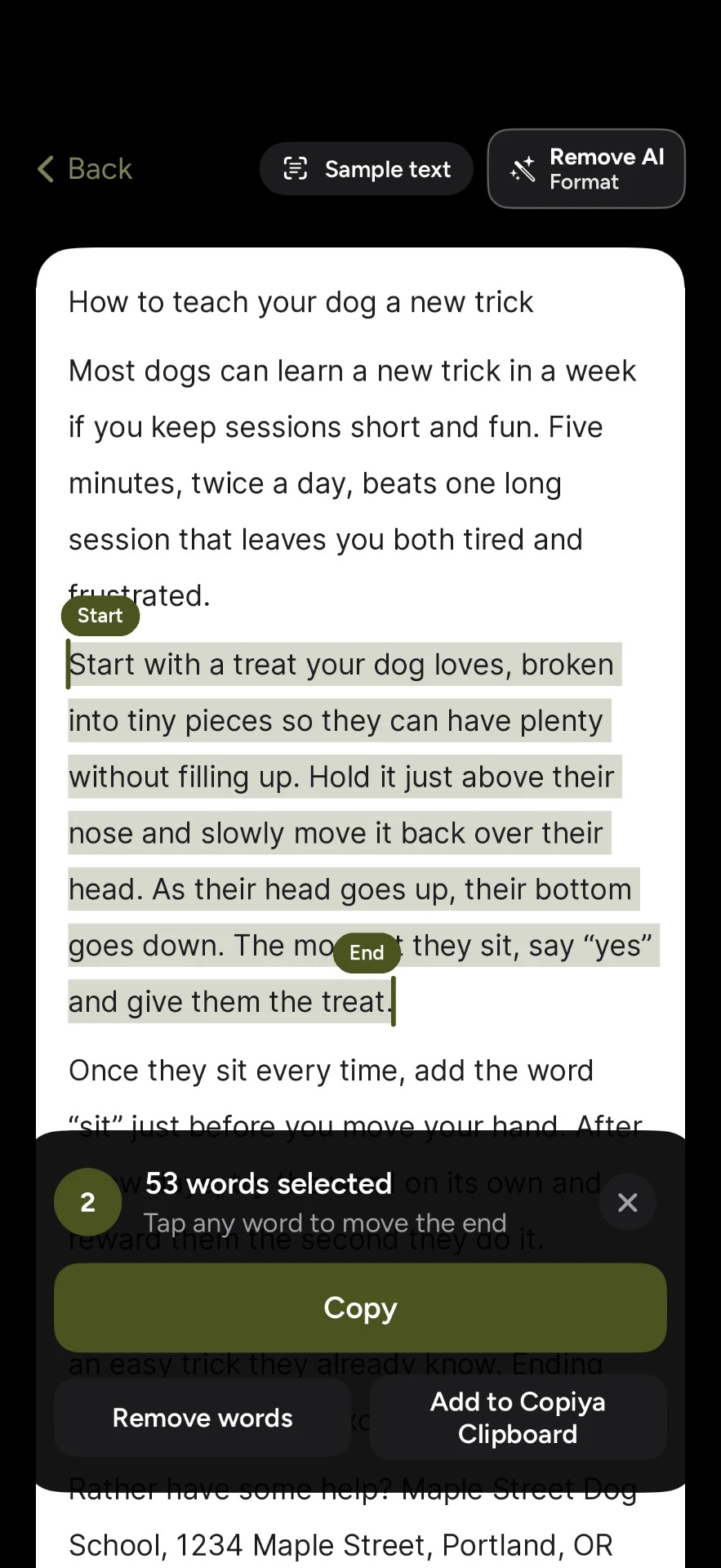
Double-tap copy is free and unlimited, needs no account and reads the text on your iPhone itself. Phone numbers, emails and addresses show in green, so one tap copies just that. Going the other way? iPad has no Back Tap, so start Copiya with Copiya Select in Control Center (iPadOS 18 or later) or an AssistiveTouch shortcut. More on unselectable text: how to copy text from an app that won't let you, including Instagram captions.
Copy a photo, or the text in a photo, from iPhone to iPad
The whole photo: Universal Clipboard carries images as well as text. In Photos, open the picture, tap the More button and tap Copy. For several, tap Select, tap the thumbnails, tap More and tap Copy. In Safari, touch and hold an image and tap Copy. Then paste on the iPad into Notes, Mail, Messages or another place that accepts pictures; most search bars won't take one.
Just the words in a photo or screenshot: with Live Text, open the photo, tap the Live Text button, touch and hold the text and move the grab points (or tap Select All), then tap Copy Text. Paste it on your iPad as usual. If the button never appears, check that Live Text is on in Settings > General > Language & Region; it isn't available in every language.
Apple says Universal Clipboard is best for small selections of text or copied images. For a batch of photos, a long video or a document, AirDrop is more reliable (see the table below).
Copy and paste from iPhone to iPad not working? Fixes in order
- Copy again, then paste right away. The item may simply have expired, or something you copied on another device (your Mac counts) replaced it.
- Check the Apple Account on both devices. A family iPad signed in to a parent's or child's account won't share your clipboard, and there's no way to link two different accounts. Use AirDrop or Messages instead.
- Turn Handoff off and on on both devices (Settings > General > AirPlay & Continuity), then do the same with Bluetooth and Wi-Fi.
- Keep the iPhone unlocked until the iPad finishes pasting. Apple's Handoff instructions expect the device you're handing off from to be unlocked, and it may help here too if pasting fails only sometimes.
- Turn off your VPN for a moment, or check that it allows local networking.
- Restart both devices, then update both in Settings > General > Software Update. Apple's own fix list is short: check the setup, restart, and install updates.
- Still failing, or works one way only? Signing out of your Apple Account and back in on the failing device is a heavier last resort: you'll need your password, and some iCloud data leaves that device until you sign back in.
Problem pasting even on one device? See why can't I copy and paste on my iPhone for every fix by symptom.
Other ways to move text from iPhone to iPad
| Method | Best for | Works with a different Apple Account? |
|---|---|---|
| Universal Clipboard | A quick piece of text or one image | No |
| AirDrop (select text, tap Share, tap AirDrop) | Long text, several photos, files | Yes |
| Notes with iCloud | Text you'll want later on both devices | No, unless you share the note |
| Messages | Links and short text you want to keep | Yes (send it to their number or email) |
What about the Mac?
Universal Clipboard also works between iPhone, iPad and Mac with the same requirements. Copy on the iPhone and press Command-V on the Mac, or the other way around. On the Mac, go to System Settings > General > AirDrop & Continuity (called AirDrop & Handoff on some versions) and turn on Allow Handoff between this Mac and your iCloud devices. Every key is in copy and paste shortcuts for Mac, iPhone and iPad, and all the iPad methods are in how to copy and paste on iPad.
Questions people ask
Can you copy and paste between two iPhones or two iPads?
Yes, if both are signed in to the same Apple Account, such as an old iPhone you still use and your new one. Universal Clipboard works the same way between any two of your Apple devices that meet the requirements.
Can you copy and paste from iPhone Notes to iPad?
Yes, copy and paste works normally from Notes. If you use iCloud for Notes on both devices, you may not need to: the same note is already on your iPad, so just open it there.
Do I need to turn on Universal Clipboard on my iPhone?
No. As Apple puts it, Universal Clipboard isn't a feature you see: there's no icon or menu for it, so the only test is copying on one device and pasting on the other. If that fails, work through the requirements table on both devices.
How do I copy and paste from the iPad keyboard to my iPhone?
With a Magic Keyboard or any hardware keyboard, select the text on the iPad (hold Shift and press the arrow keys, or Command-A to select all), press Command-C, then paste on your iPhone.